
zappzy Support Center > Content > Create posts > Create a post > Create a post on YouTube

Video or step-by-step guide with screenshots. Your choice. Start how you like.
Step-by-step guide
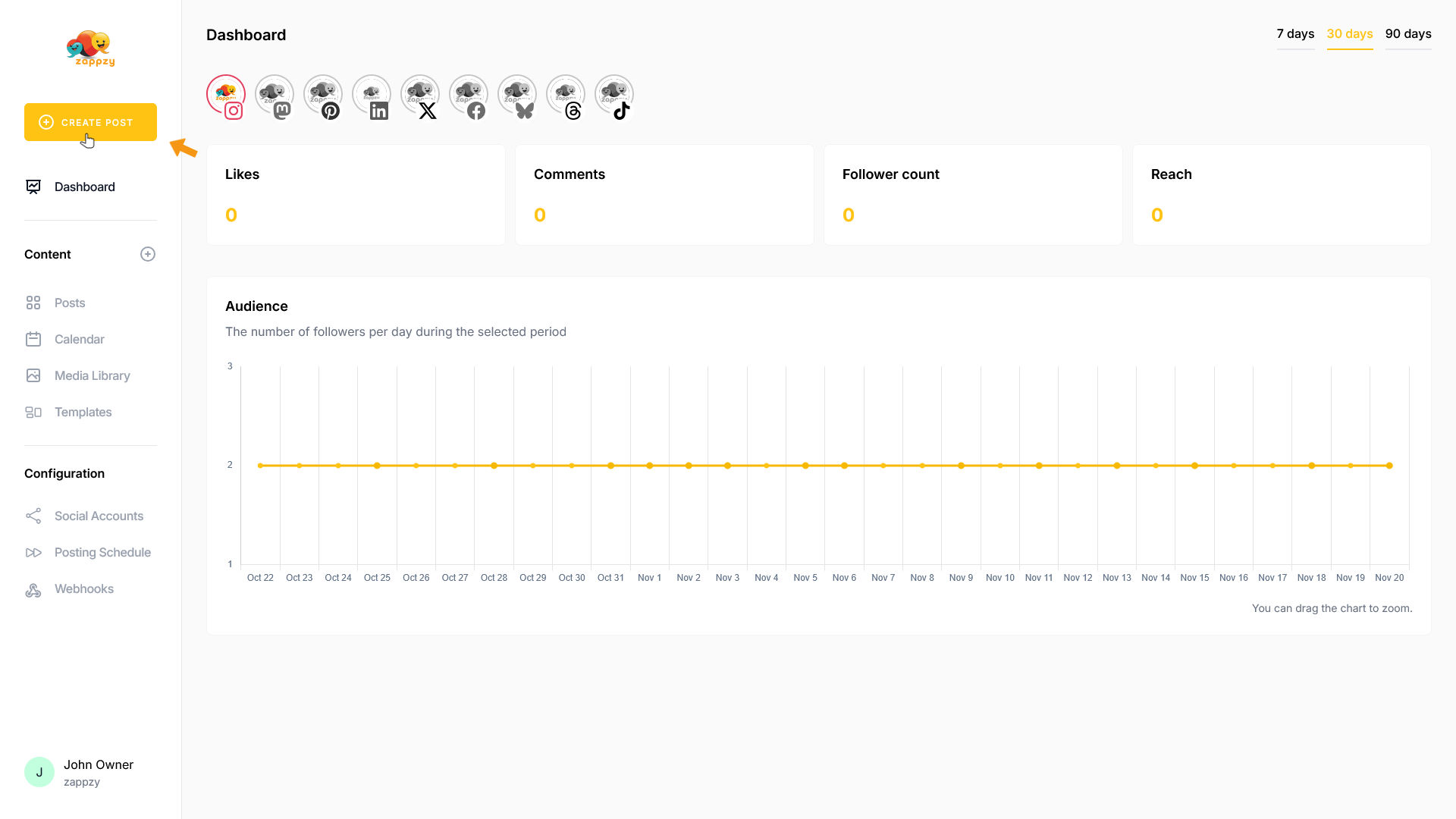
Once you're logged in to zappzy, you'll see an orange CREATE POST button in the left menu. Click on it.
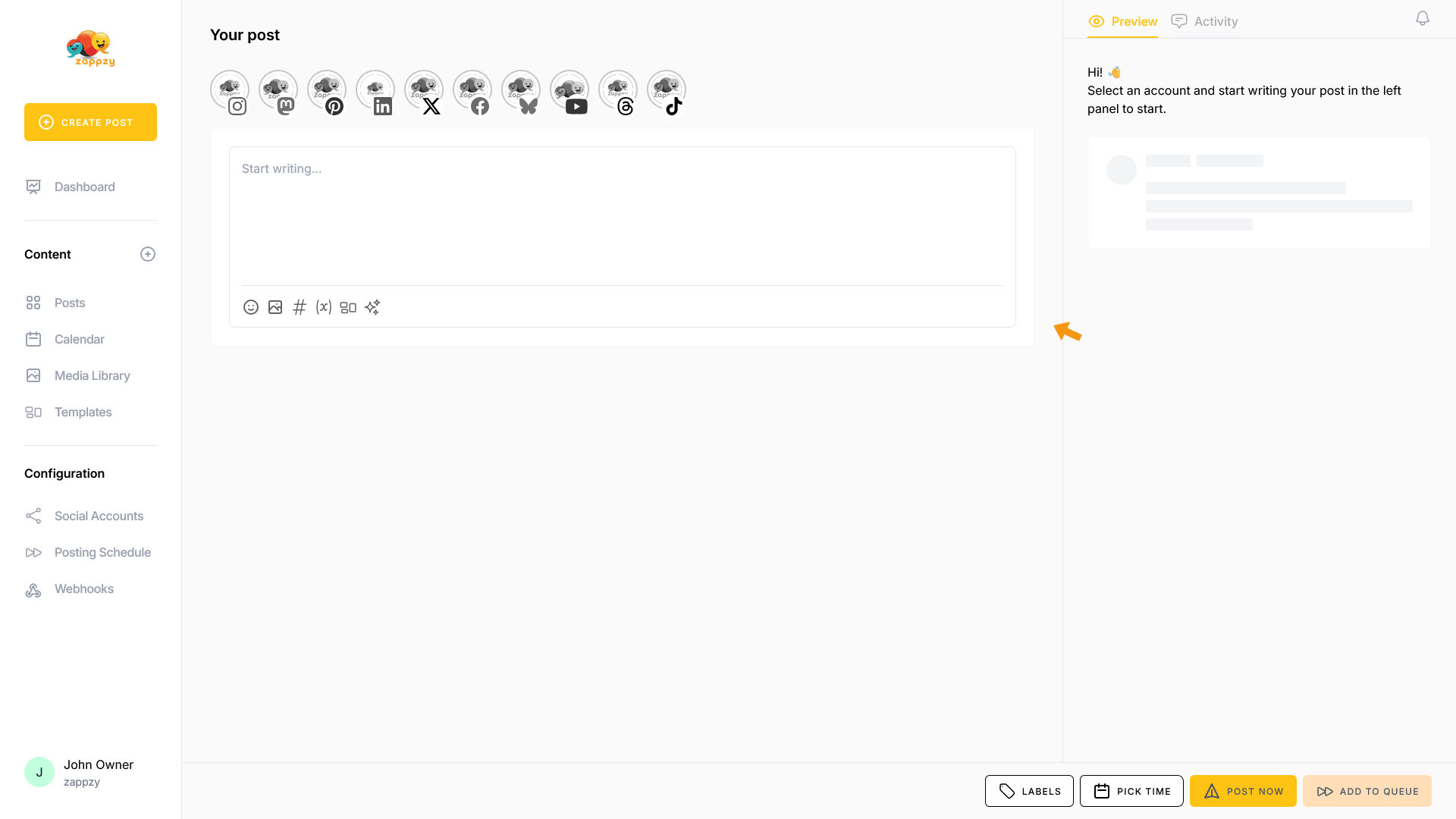
The Your post overview will appear on your main screen.
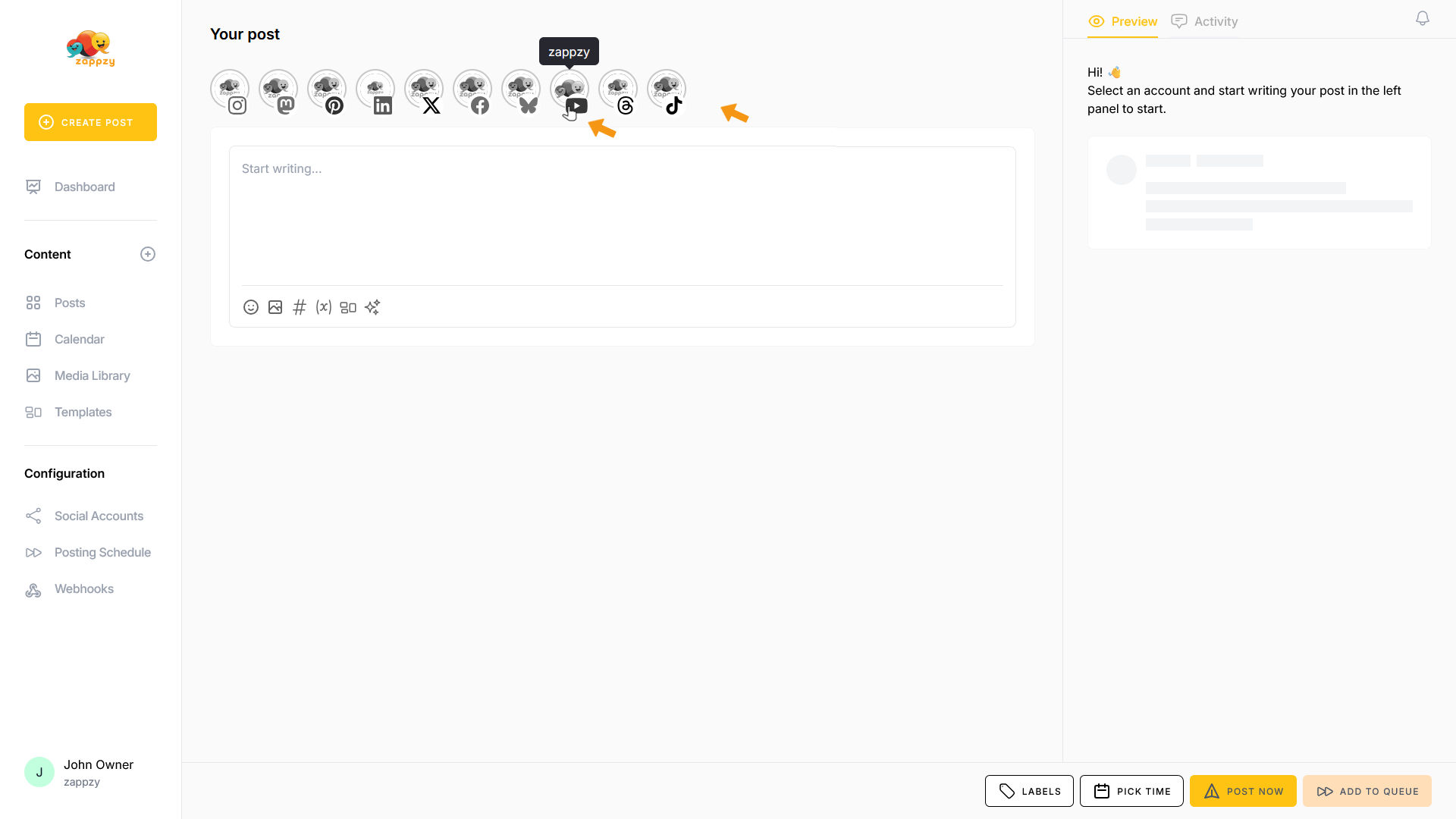
At the top of the post editor, you'll see your connected social media platforms. Click on the YouTube icon.
The YouTube icon is now active at the top, and your YouTube options appear below.
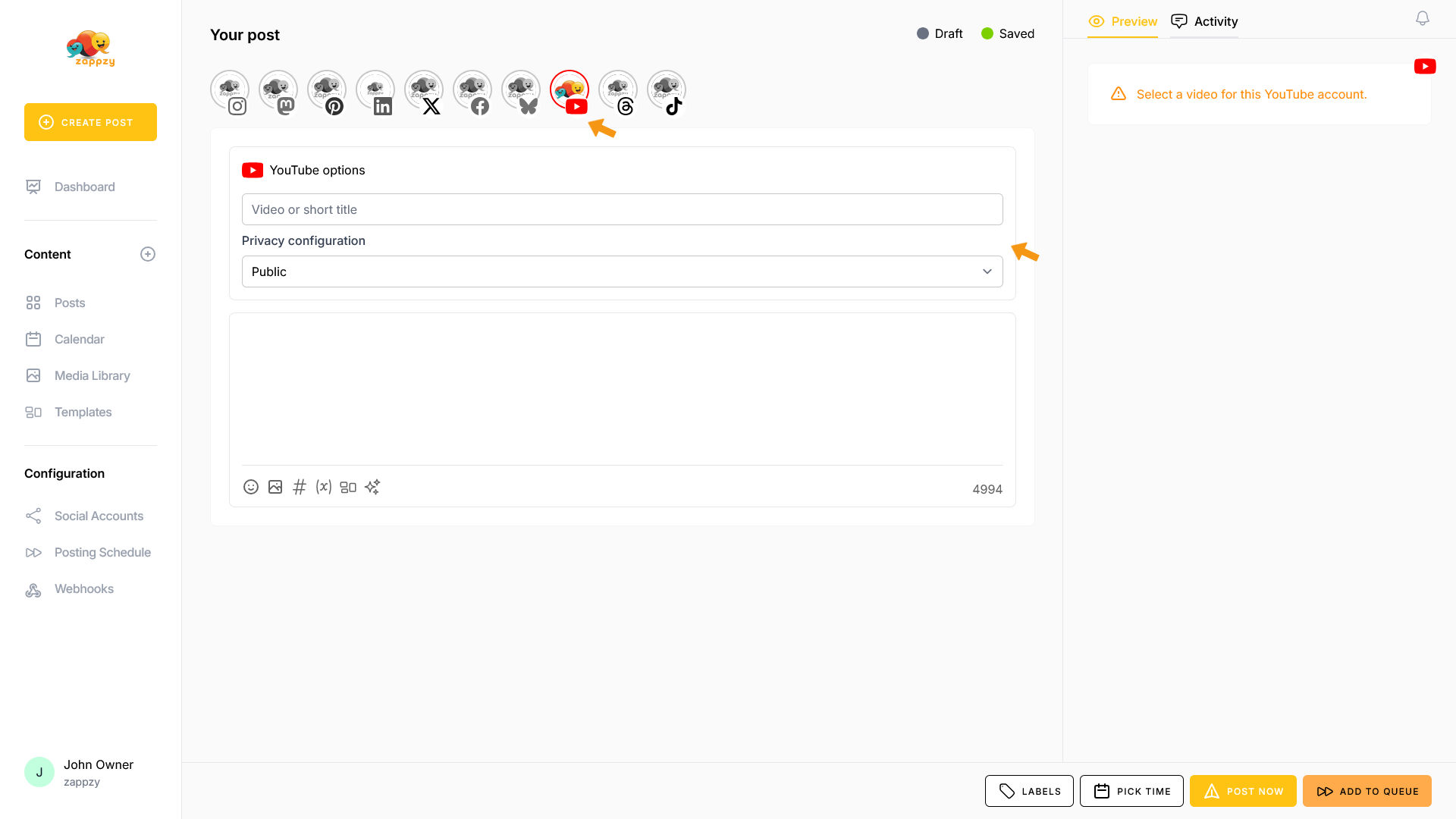
First, add a title for your video. We'll use example text for this guide.
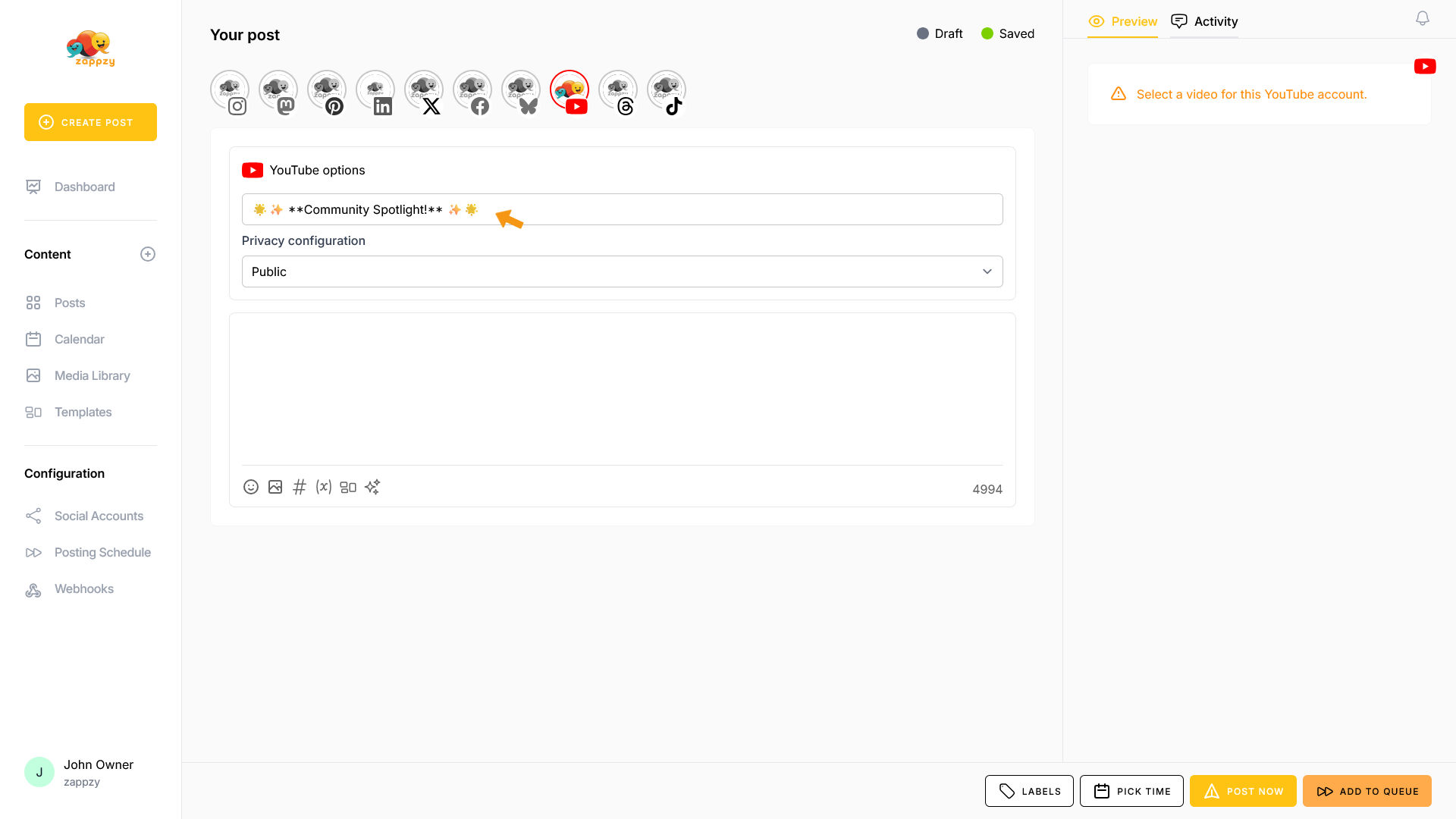
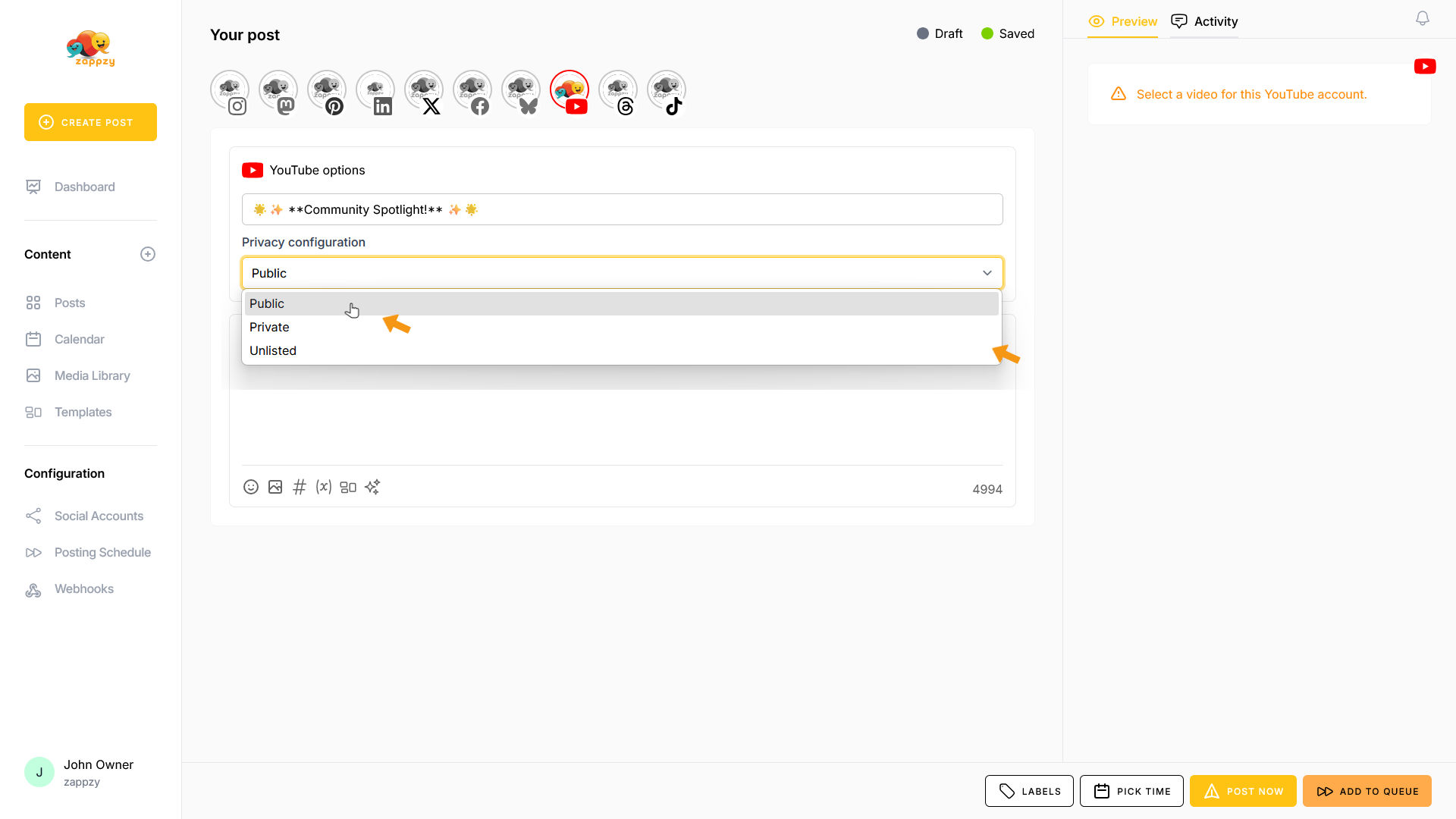
Choose how you want to set your privacy configuration: Public, Private, or Unlisted.
What's what?
Public: Your video is visible to everyone and appears in search results and on your channel.
Private: Only you and people you specifically invite can watch the video—perfect for internal reviews or drafts.
Unlisted: Your video won't appear in search or on your channel, but anyone with the direct link can watch it.
Type your post in the post editor (where it says "Start writing…"). We'll use example text for this guide.
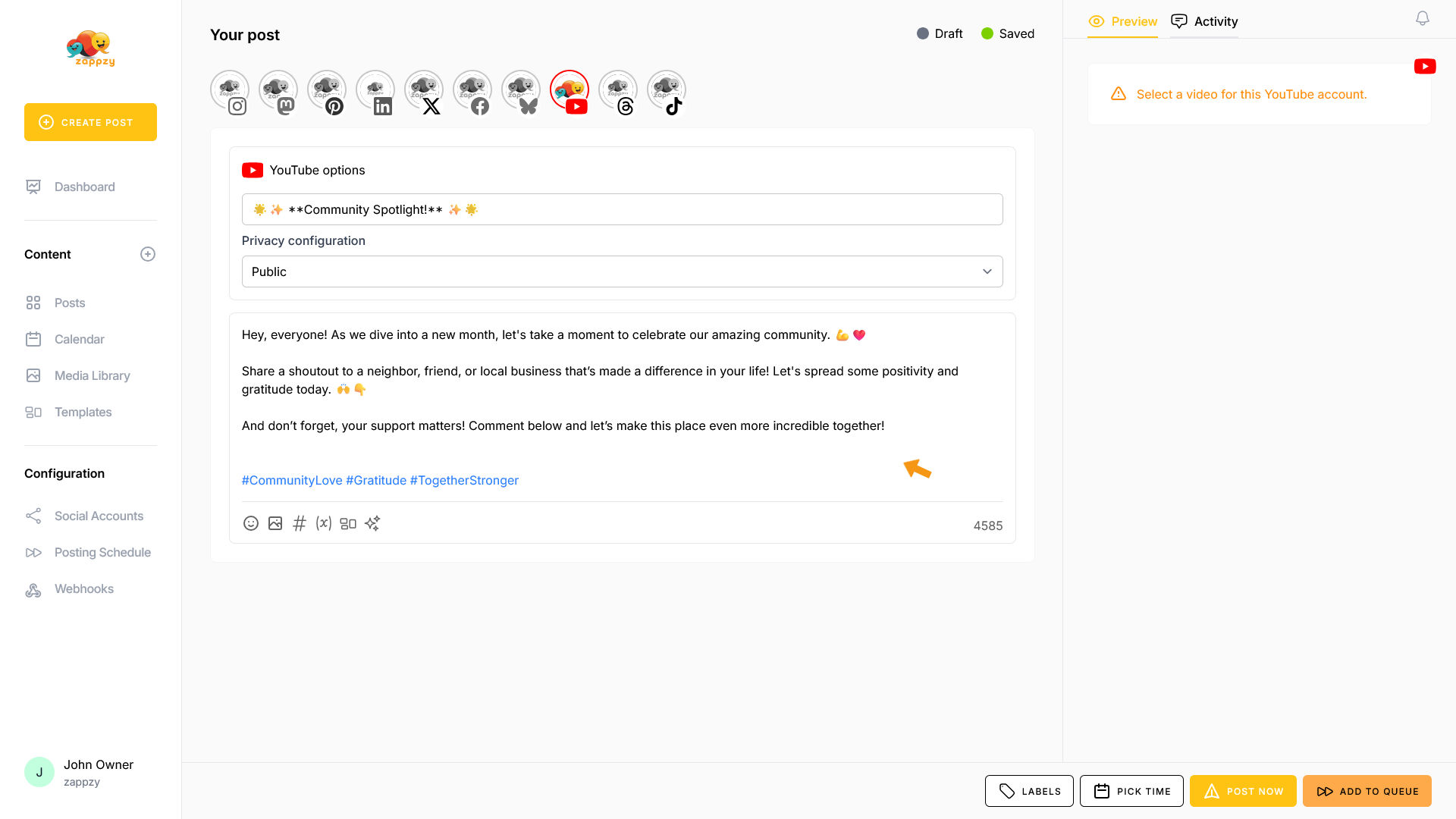
As you can see, we've added emojis to our text. You can do the same—no need to search for emojis online. Just click the emoji icon at the bottom of the post editor.
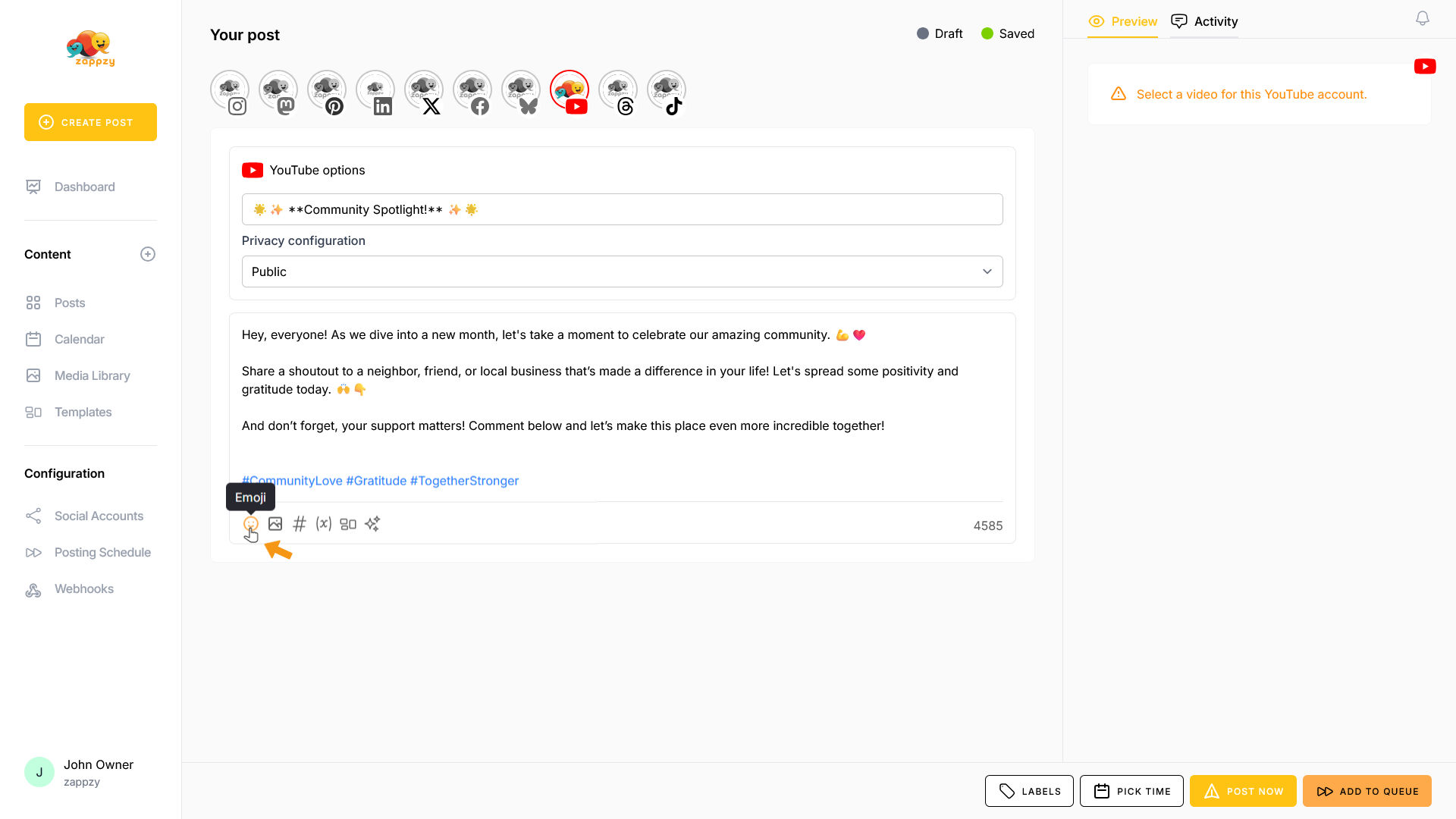
The emoji pop-up will open. You can scroll through all emojis, click on the categories at the top, or use the Search field to find a specific emoji.
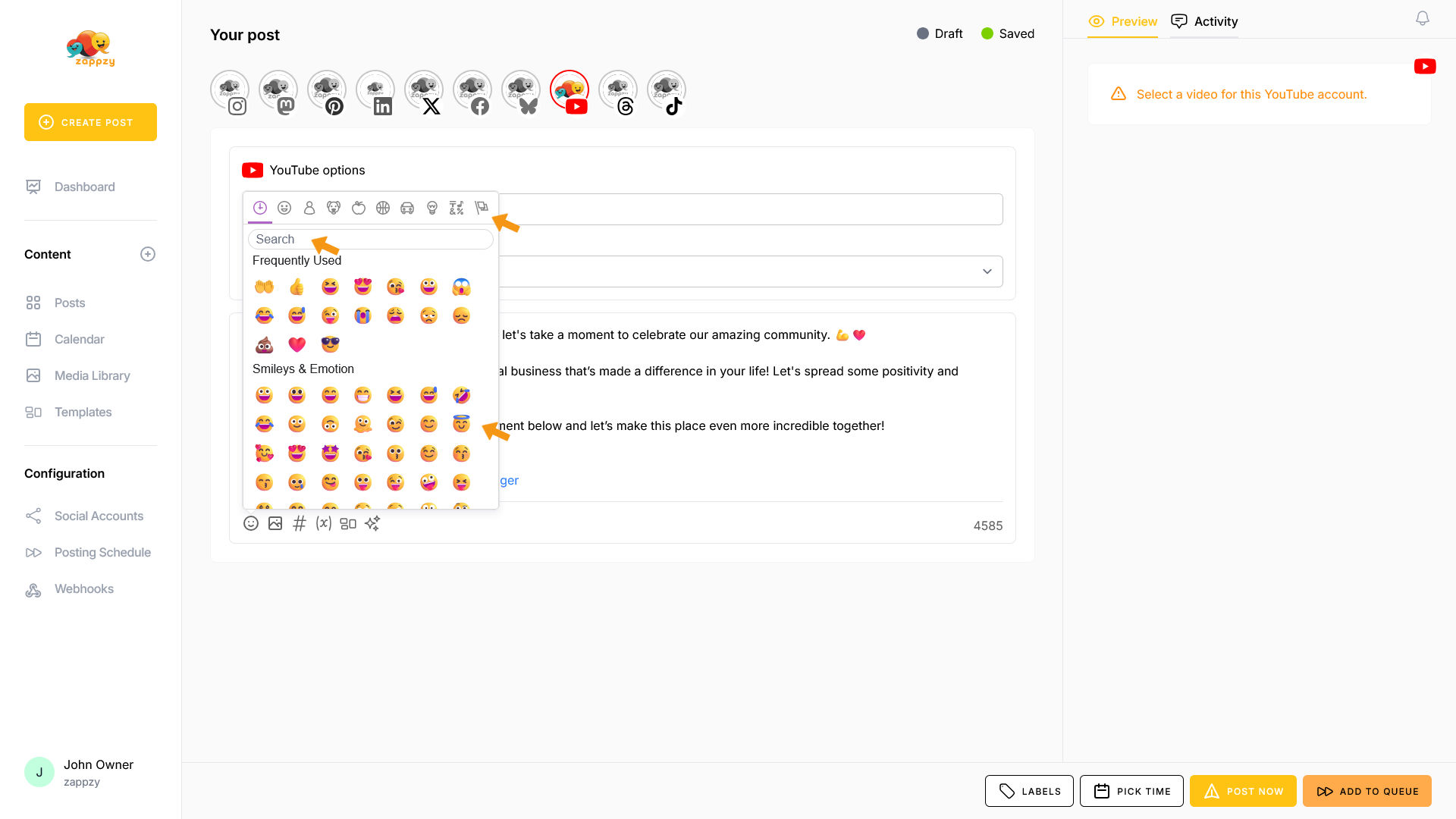
To insert an emoji into your text, click where you want it to appear, find the emoji you need, and click on it.
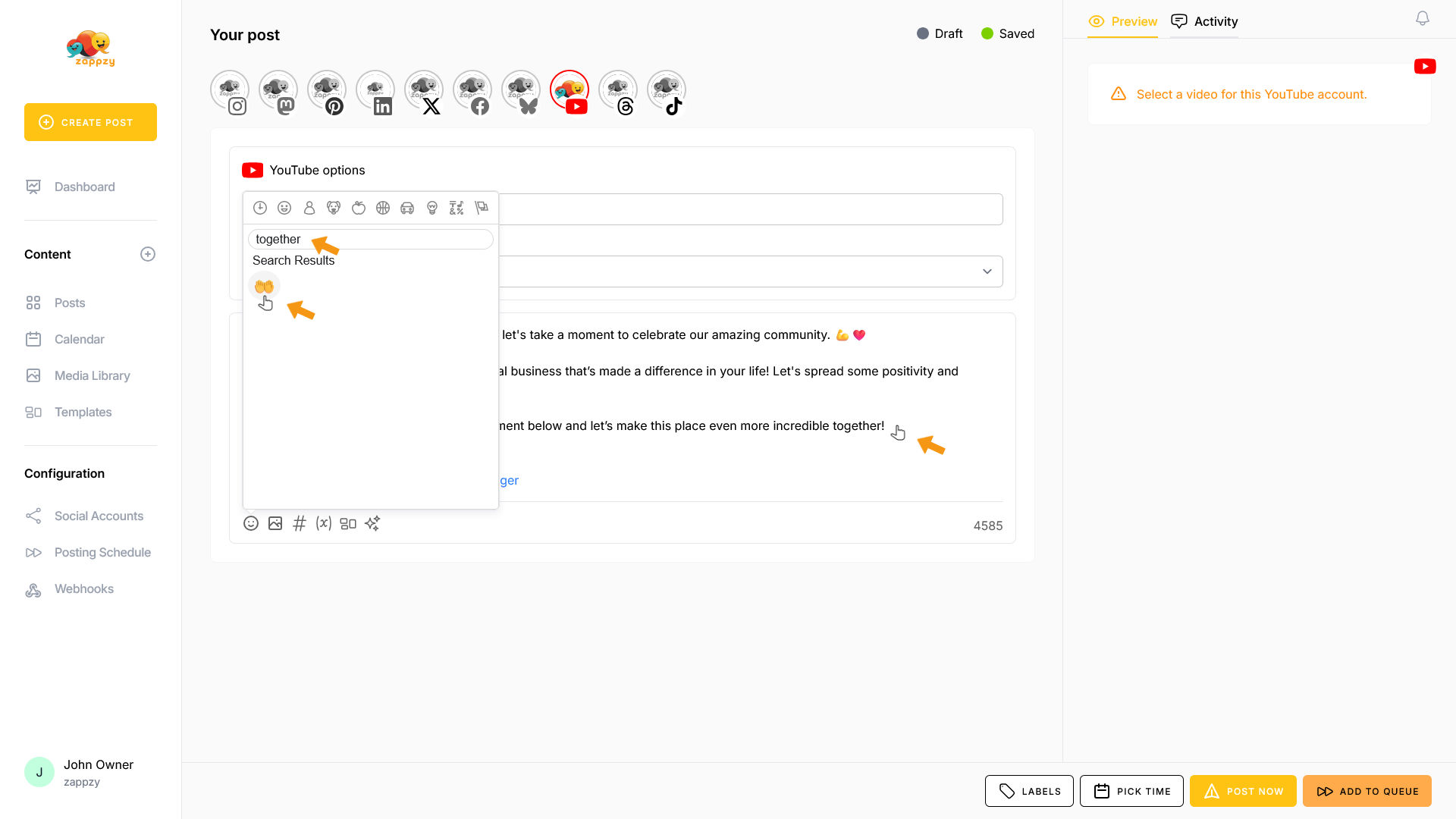
The emoji has been inserted into your text.
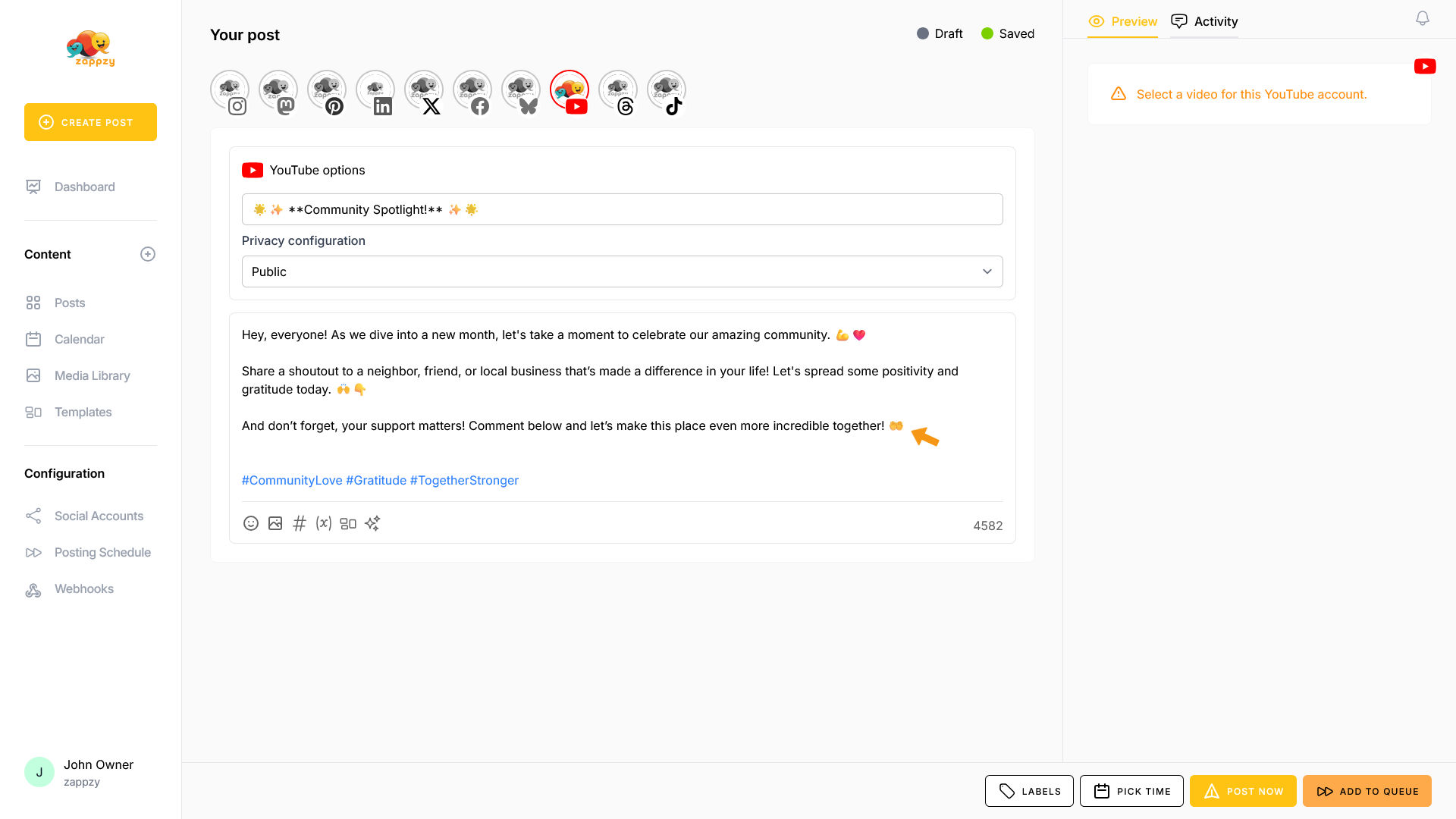
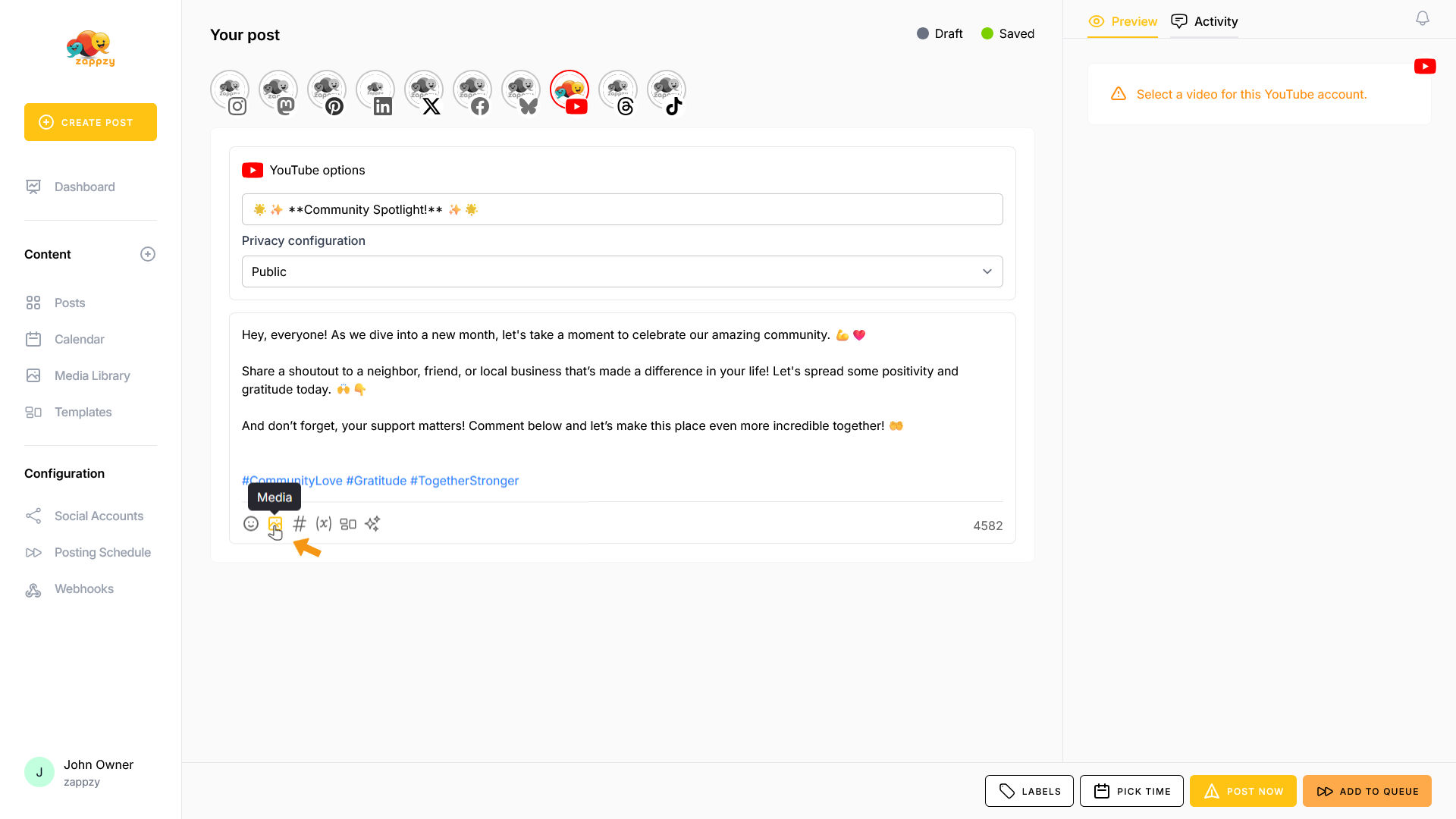
Now let's add a video. Click the media icon at the bottom of the post editor.
The Add Media pop-up opens. First, you'll see your Media Library—where you've uploaded your own videos.
You also have the option to upload videos using the Drag & Drop files field or create one with Adobe Express (New Design).
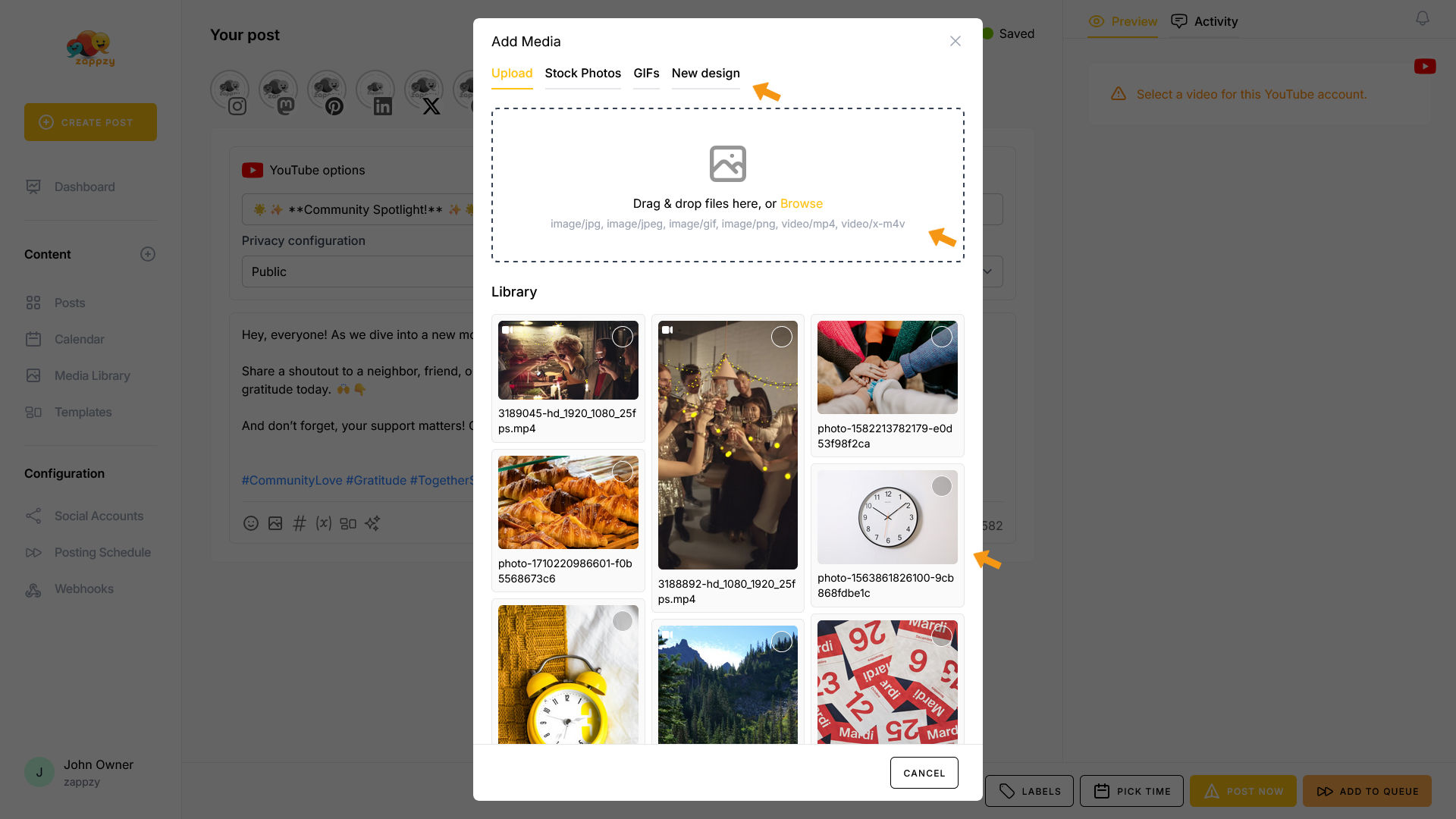
To select a video, click on it. It will be marked, and the INSERT 1 ITEM button appears at the bottom. Click on that button.
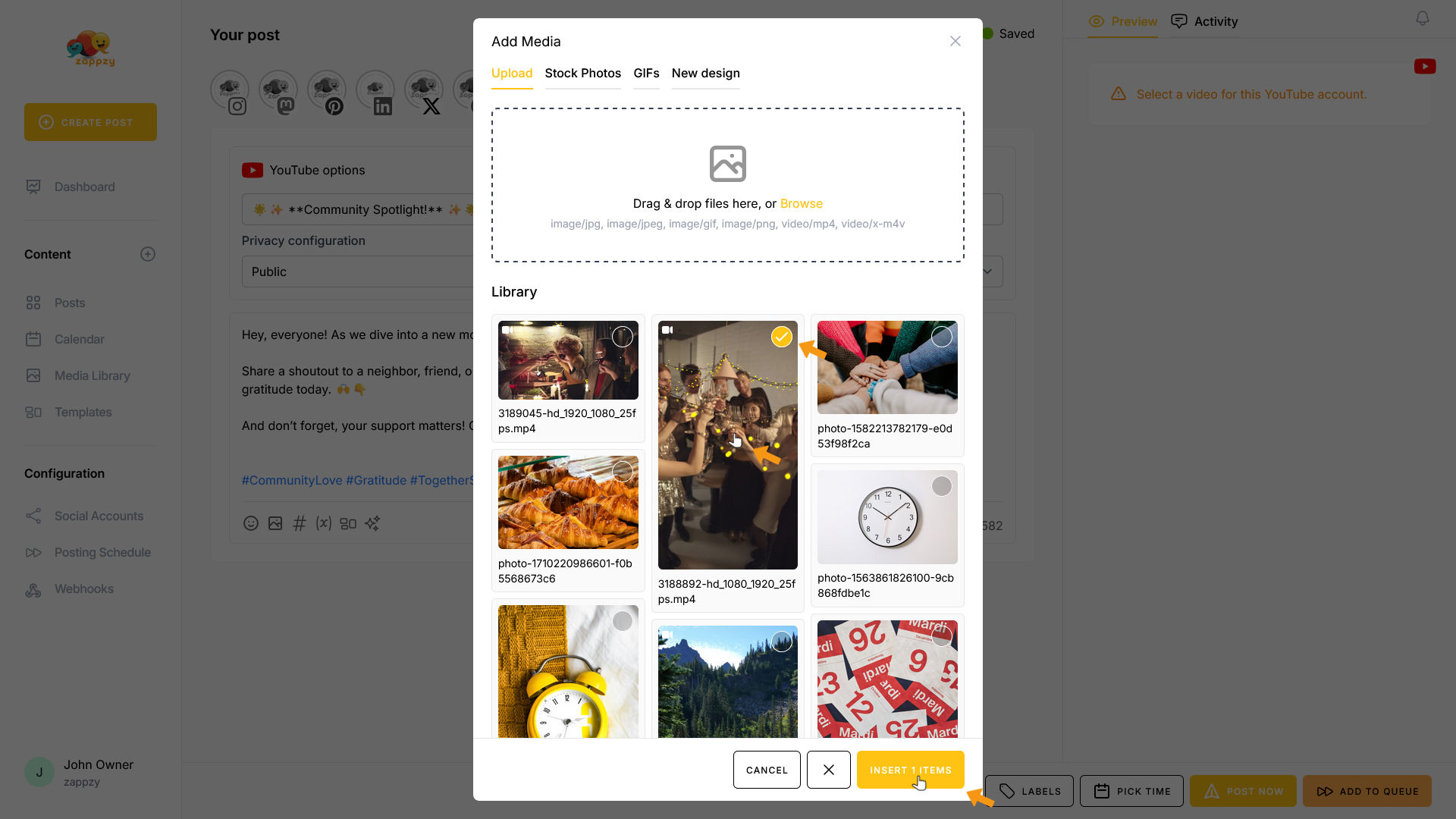
Your video has been inserted.
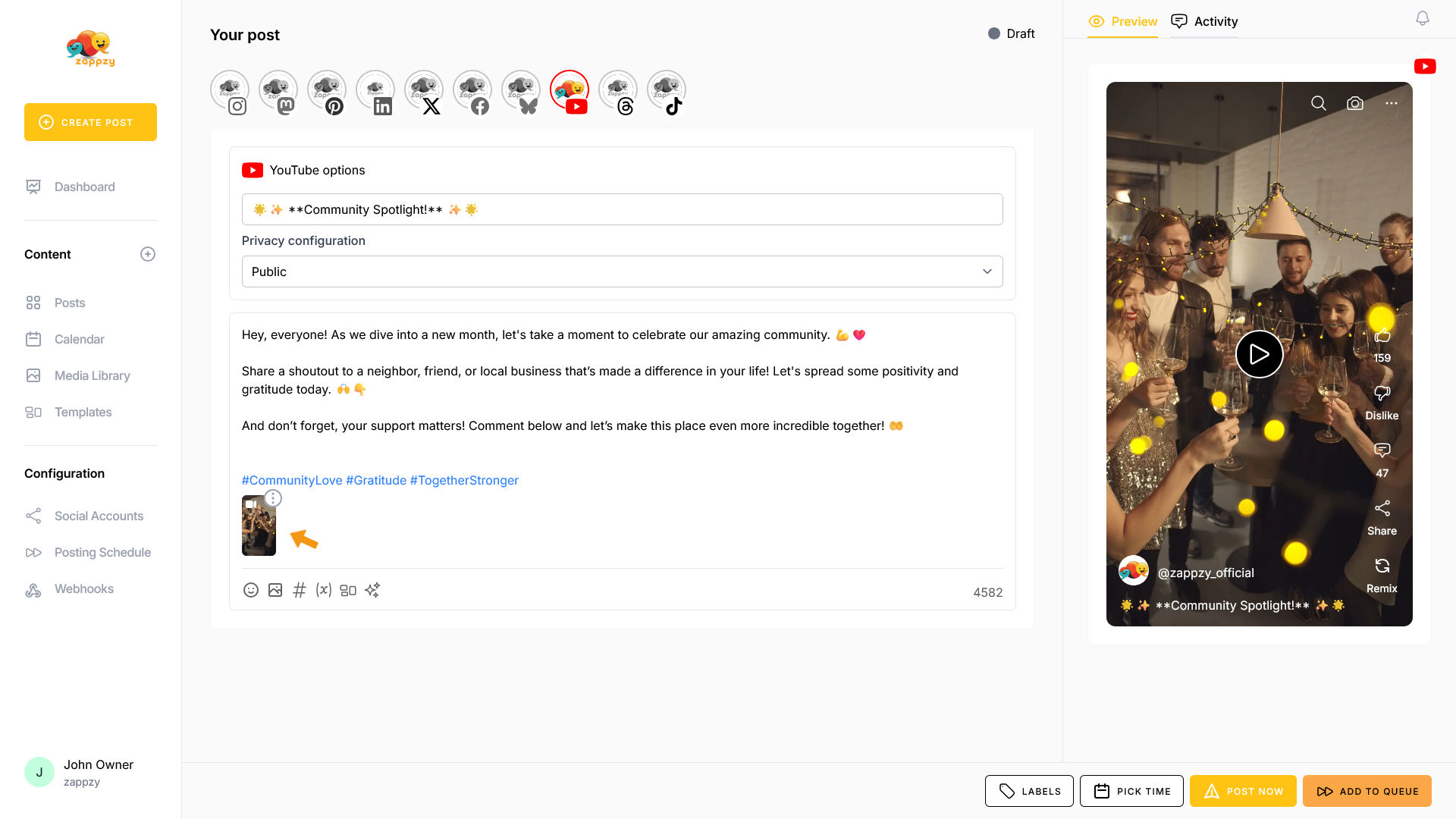
Very important: Your video format determines where it appears on YouTube. Videos in 9:16 (vertical) format are published as Shorts, while 16:9 (horizontal) videos are published as standard Videos.
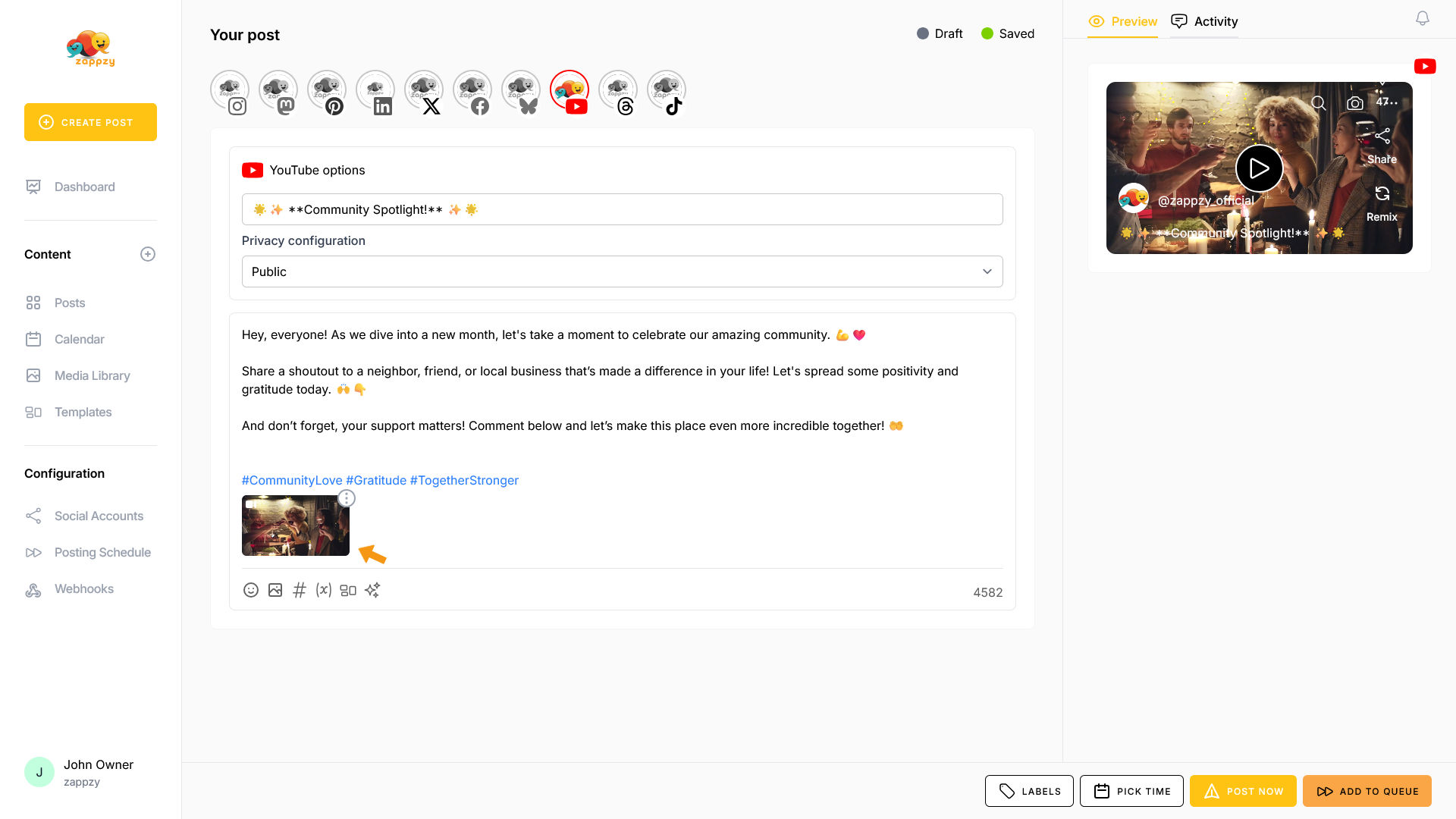
On the video, you'll see three vertical dots in a circle. Click on it.
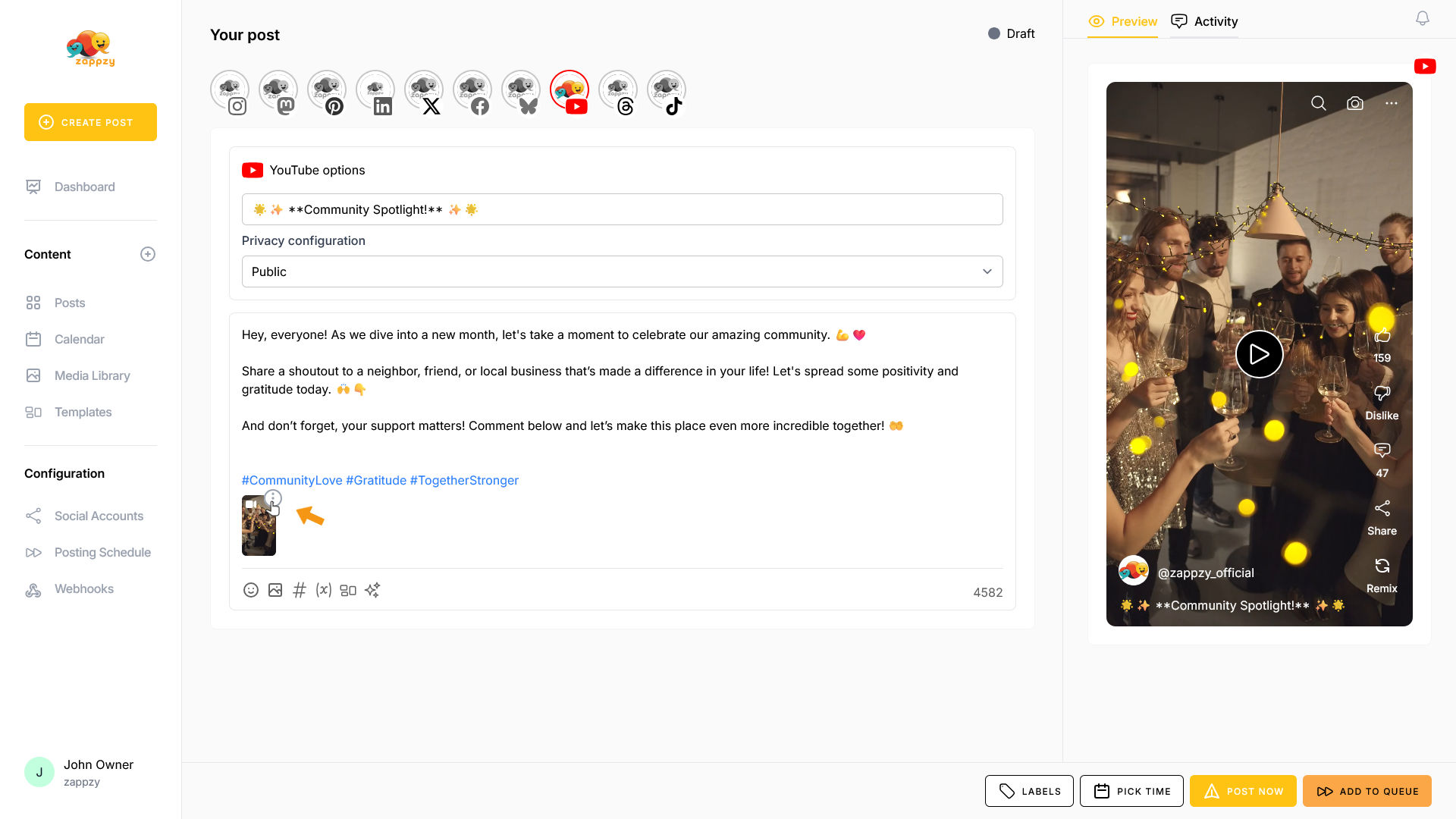
A menu opens with two options: Remove (self-explanatory) or Add video thumbnail—which zappzy will include when posting to YouTube.
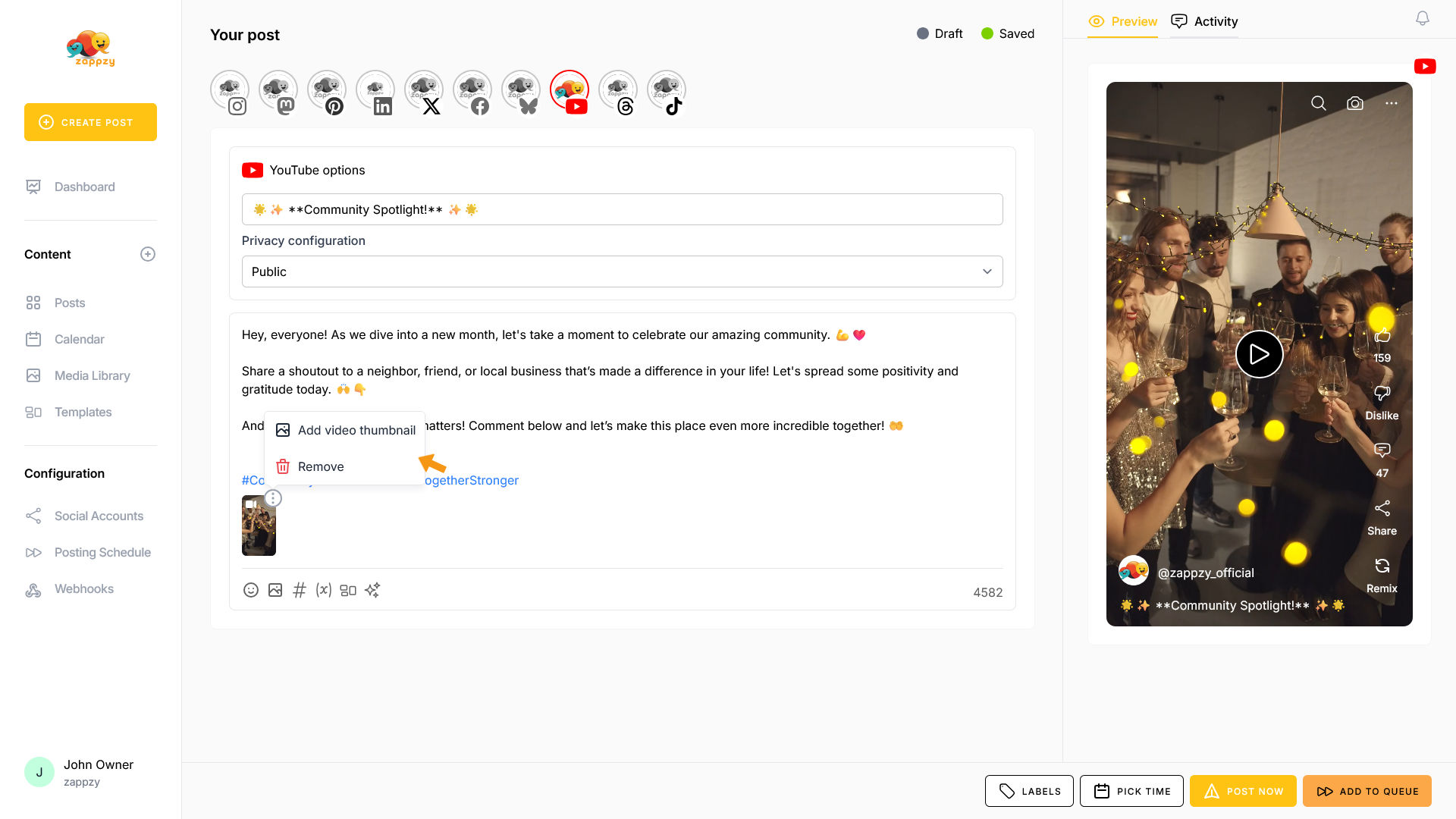
Why add a thumbnail? It's the preview image viewers see before clicking your video—a custom one grabs attention and significantly boosts click-through rates.
Click on Add video thumbnail.
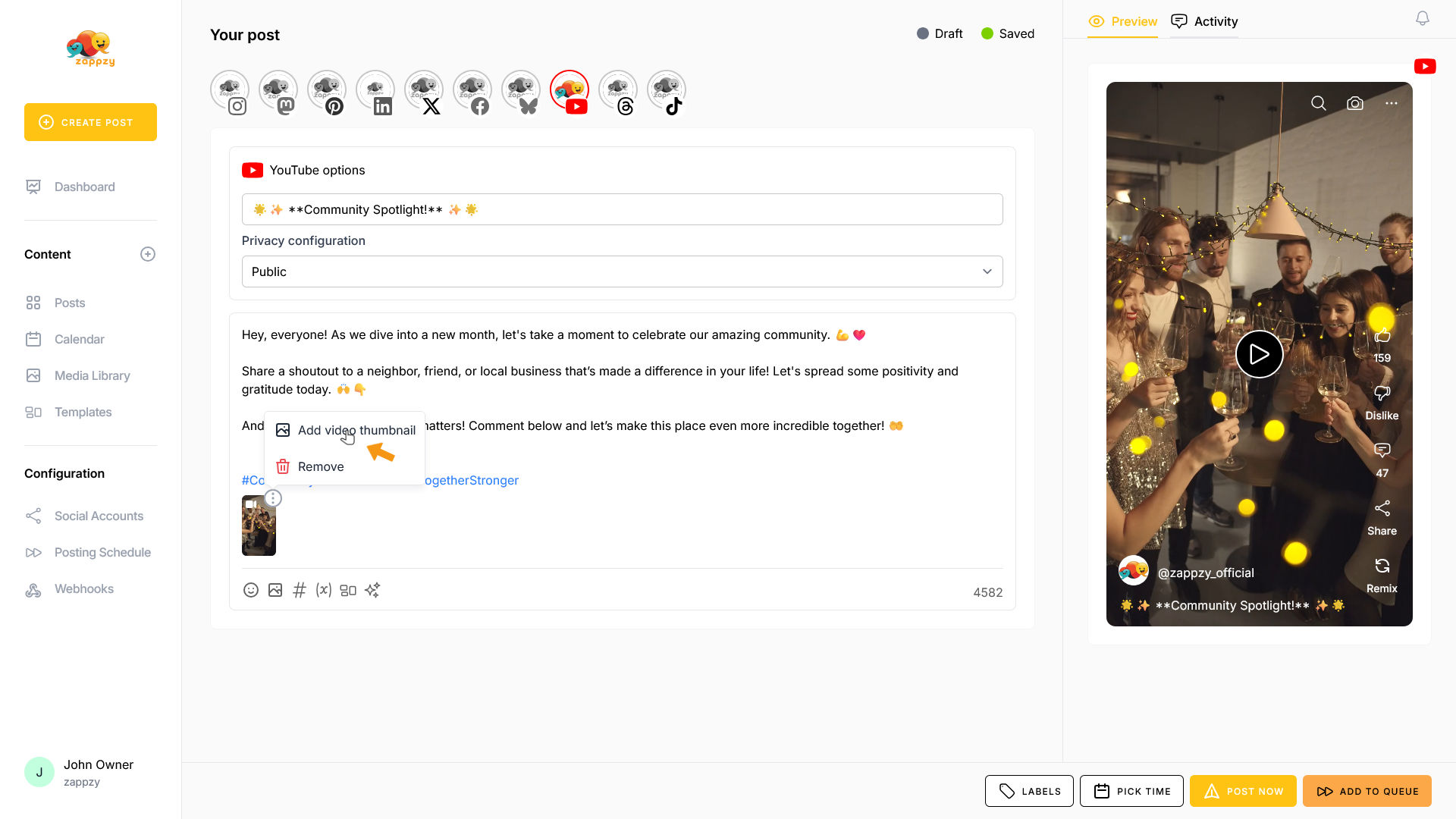
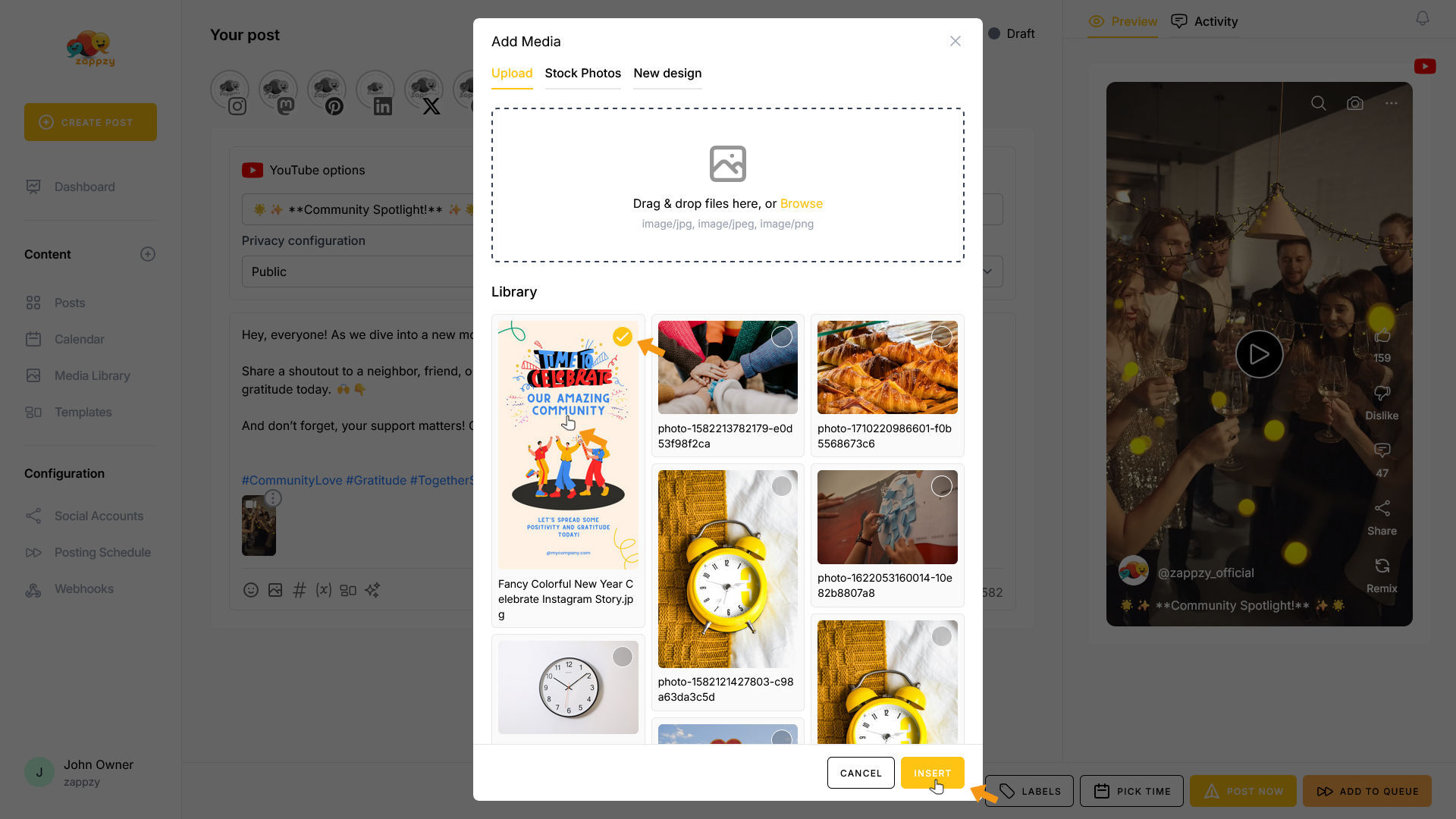
The Add Media pop-up opens.
(This feature is available for Instagram, YouTube, Pinterest, and LinkedIn.)
First, you'll see your Media Library—where you've uploaded your own thumbnails.
You also have the option to upload thumbnails using the Drag & Drop files field or create one with Adobe Express (New Design).
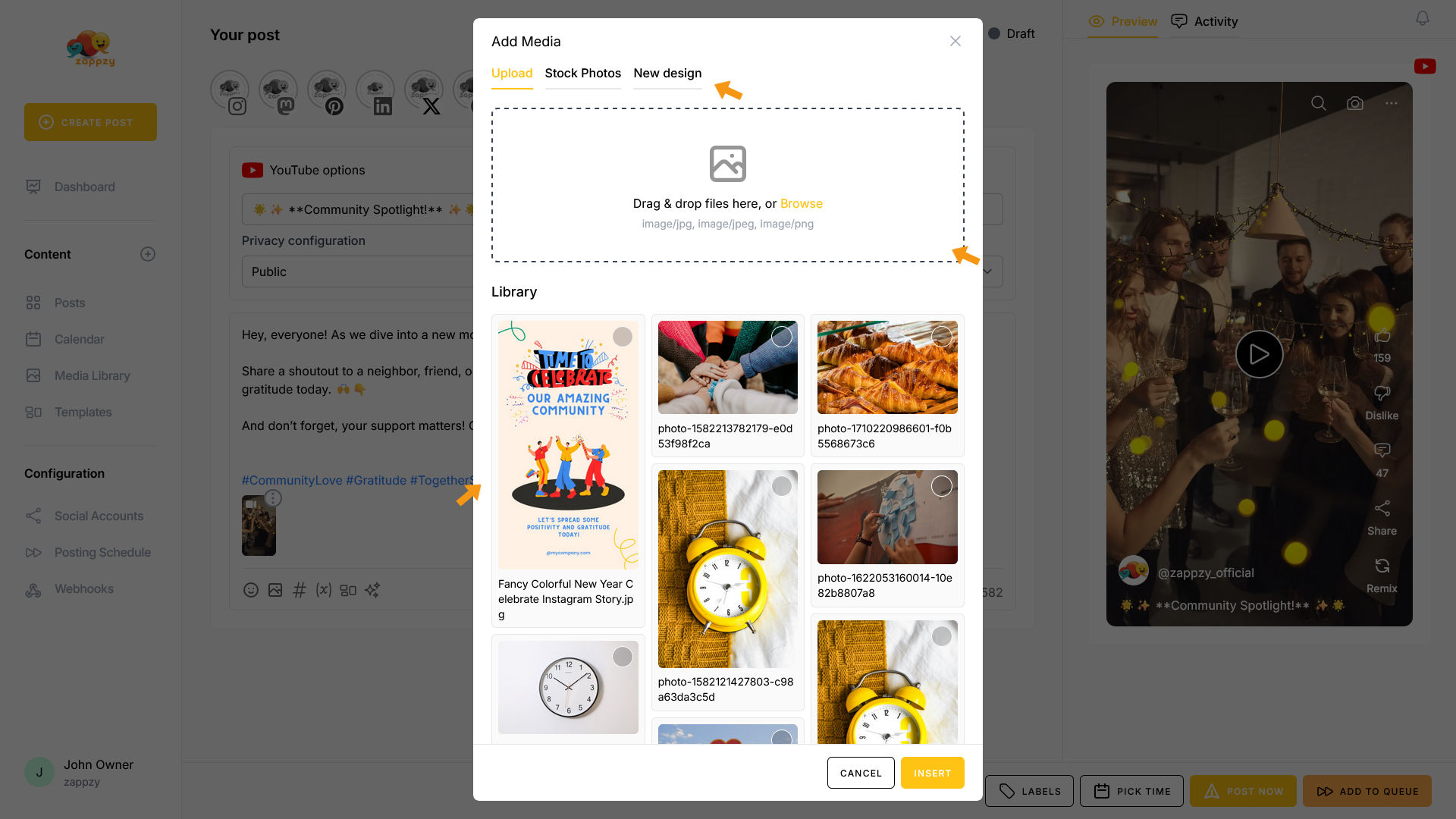
To select a thumbnail, click on it. It will be marked, and click on the INSERT button at the bottom.
The thumbnail has been added. You'll see a small image icon appear on the video.
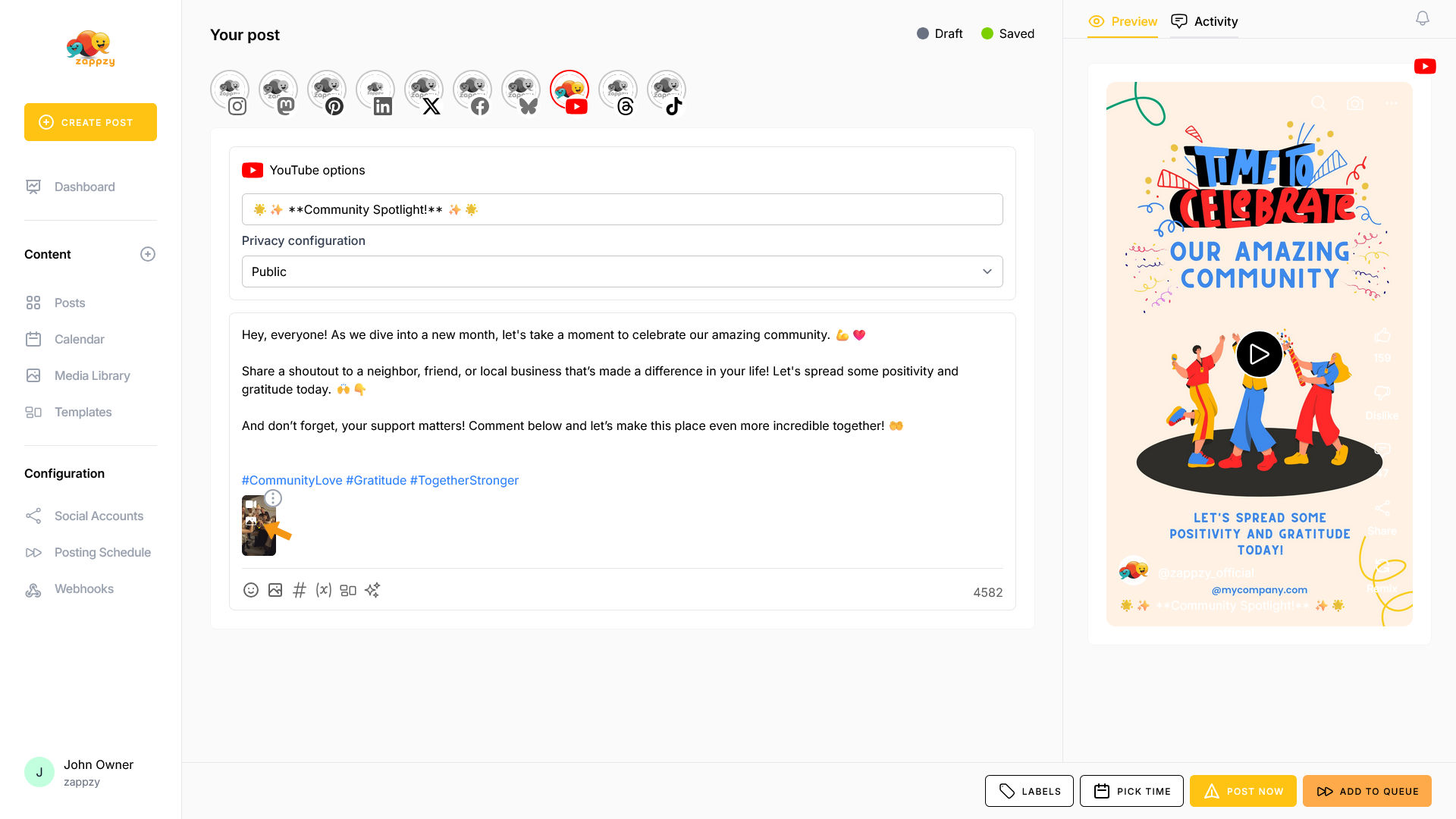
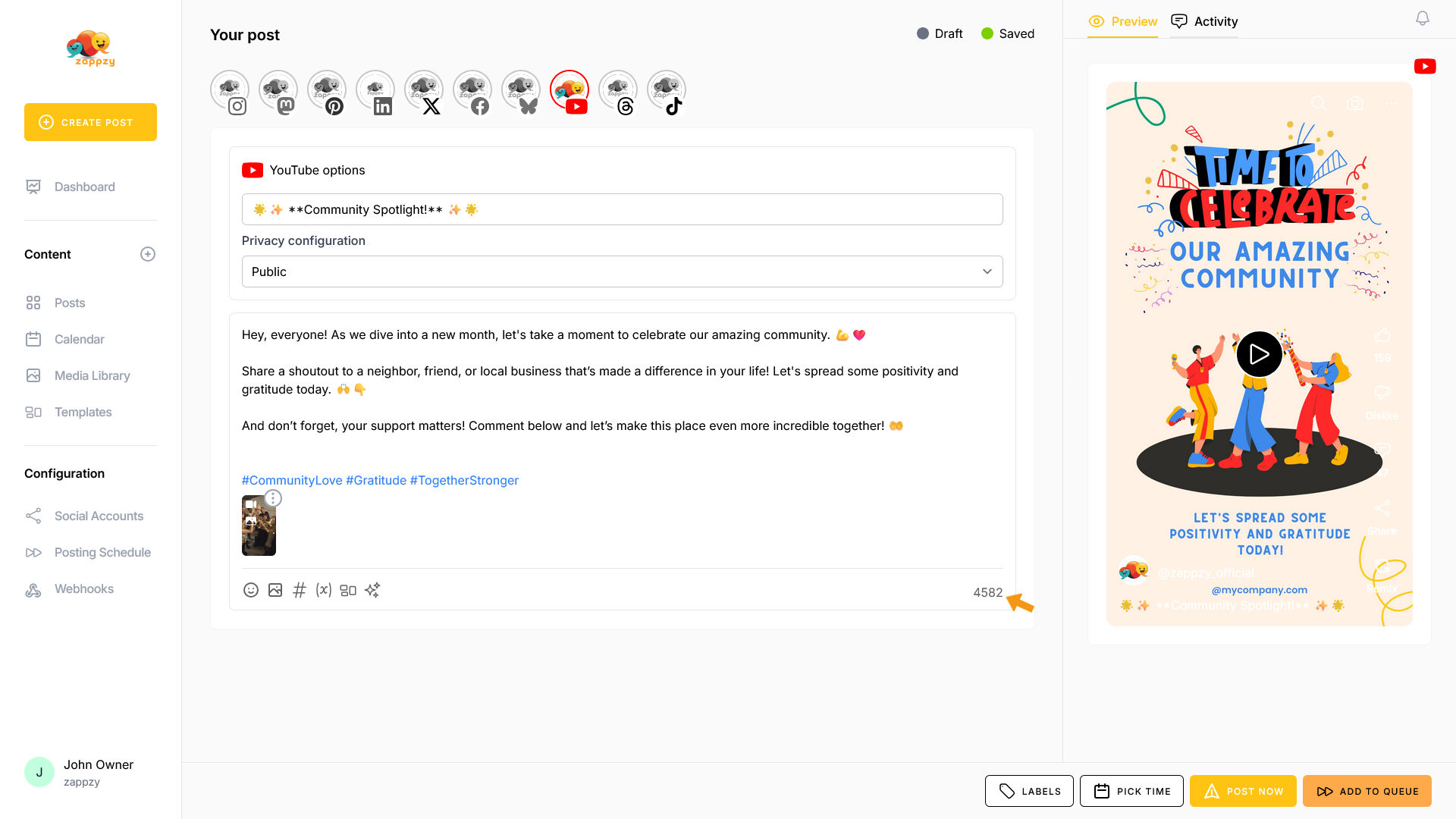
The other icons below the post editor are explained in separate support articles. Now, let's move to the right side. Here you'll see the character count for your post (this varies by platform).
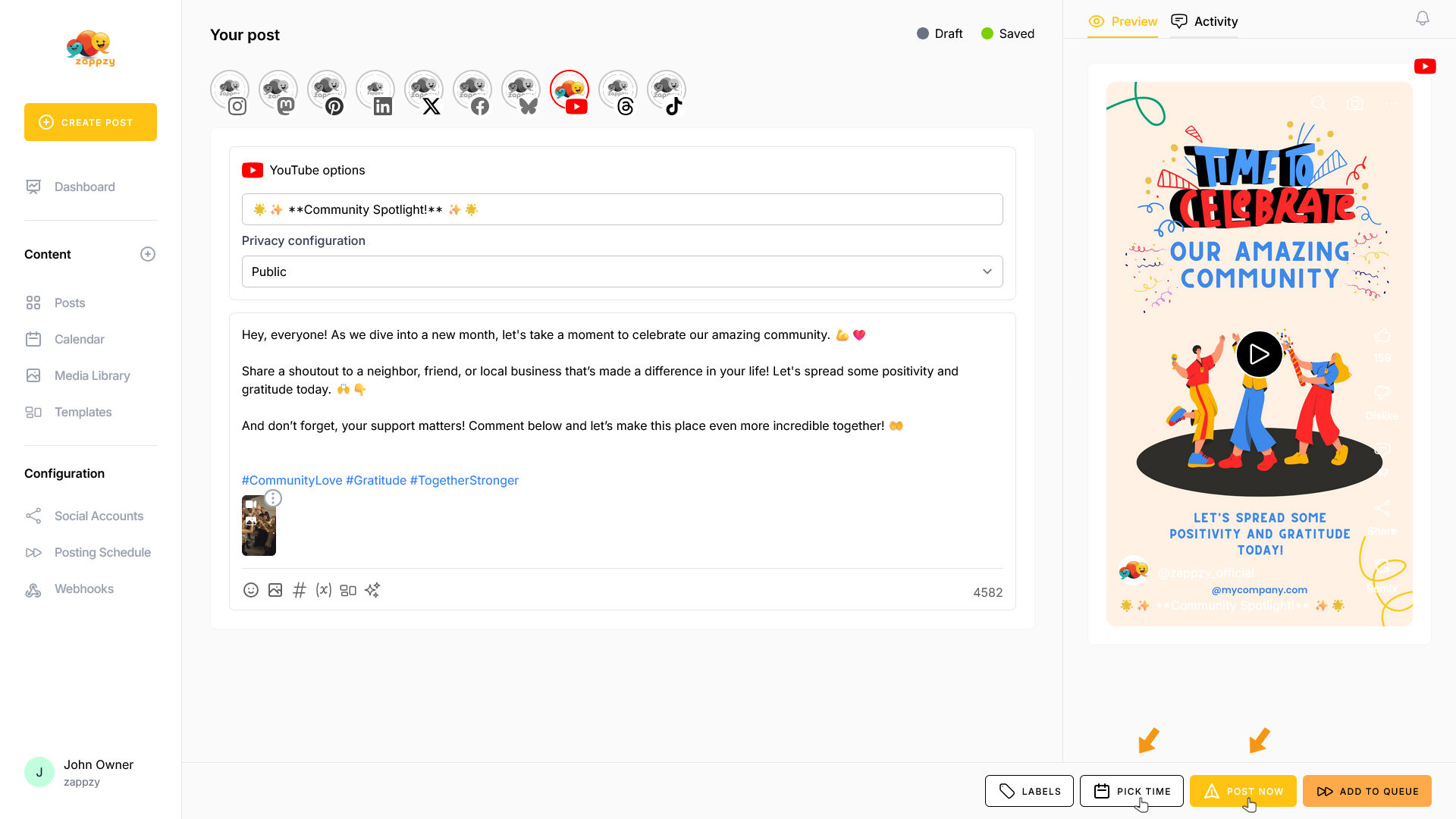
You've probably noticed the preview on the right side. Under the Preview tab, you'll see exactly how your post will look on YouTube—so you can check formatting, layout, and media before publishing (including the thumbnail).
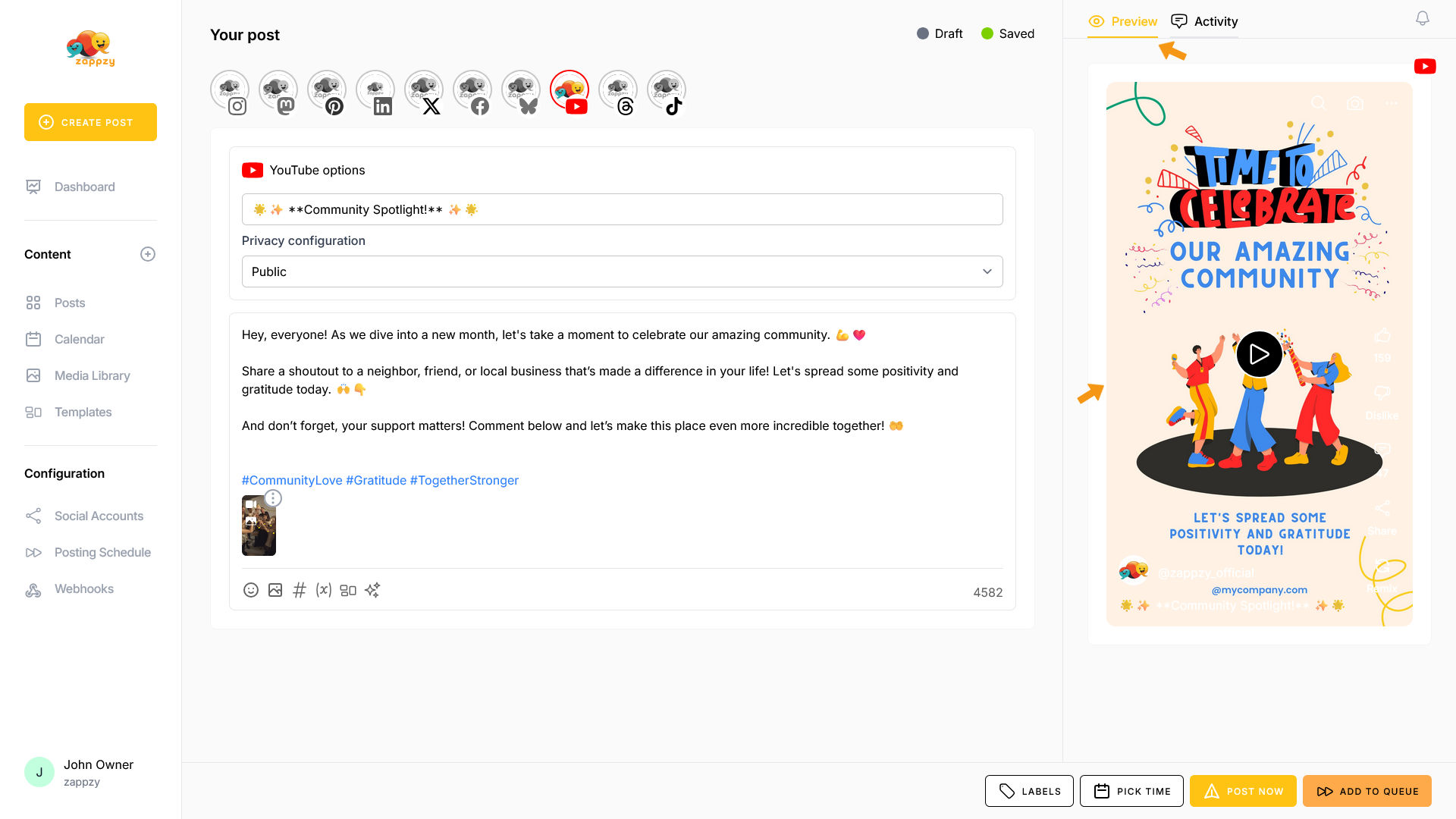
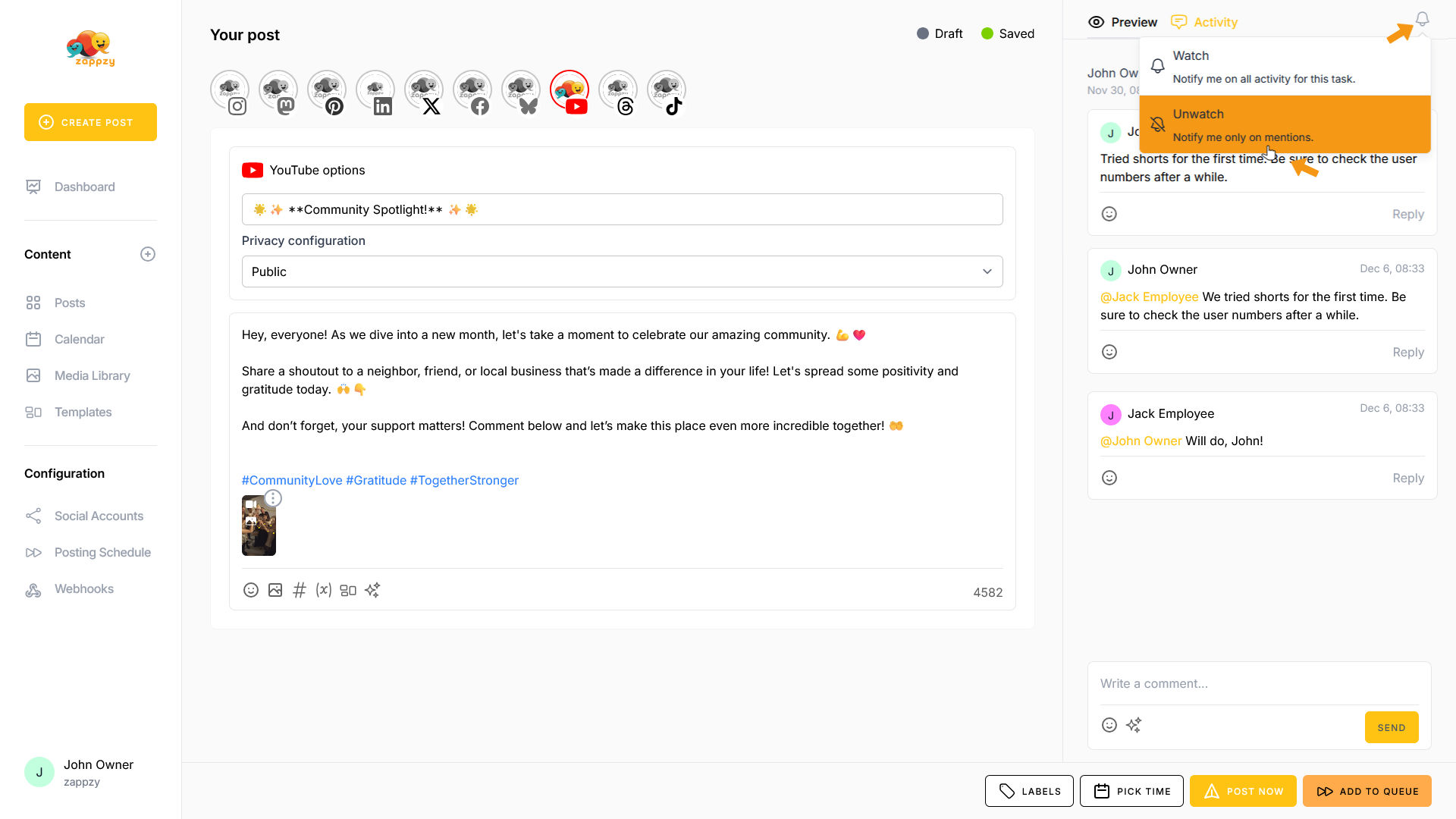
Next to it, you'll find the Activity tab. Click on it.
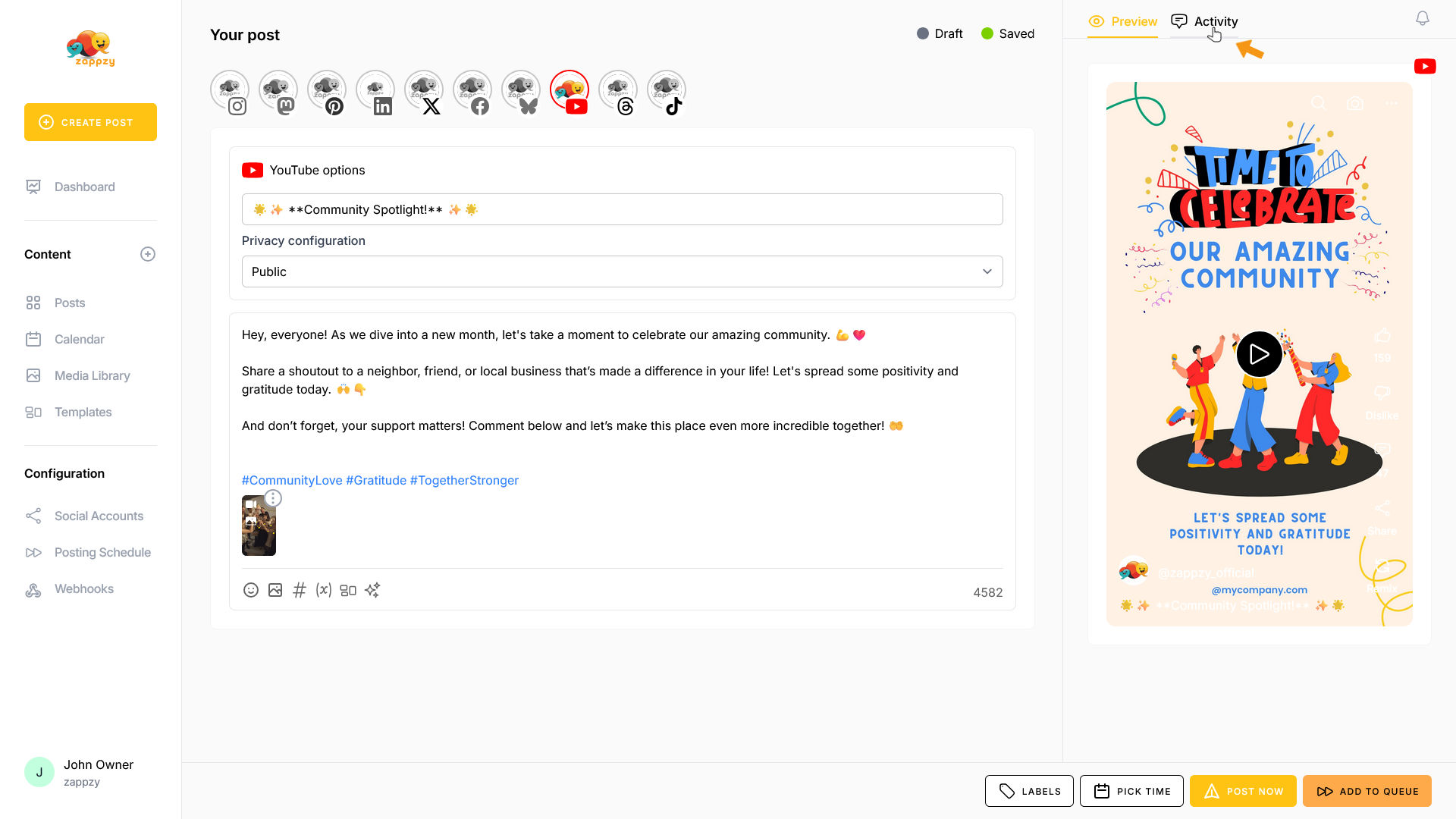
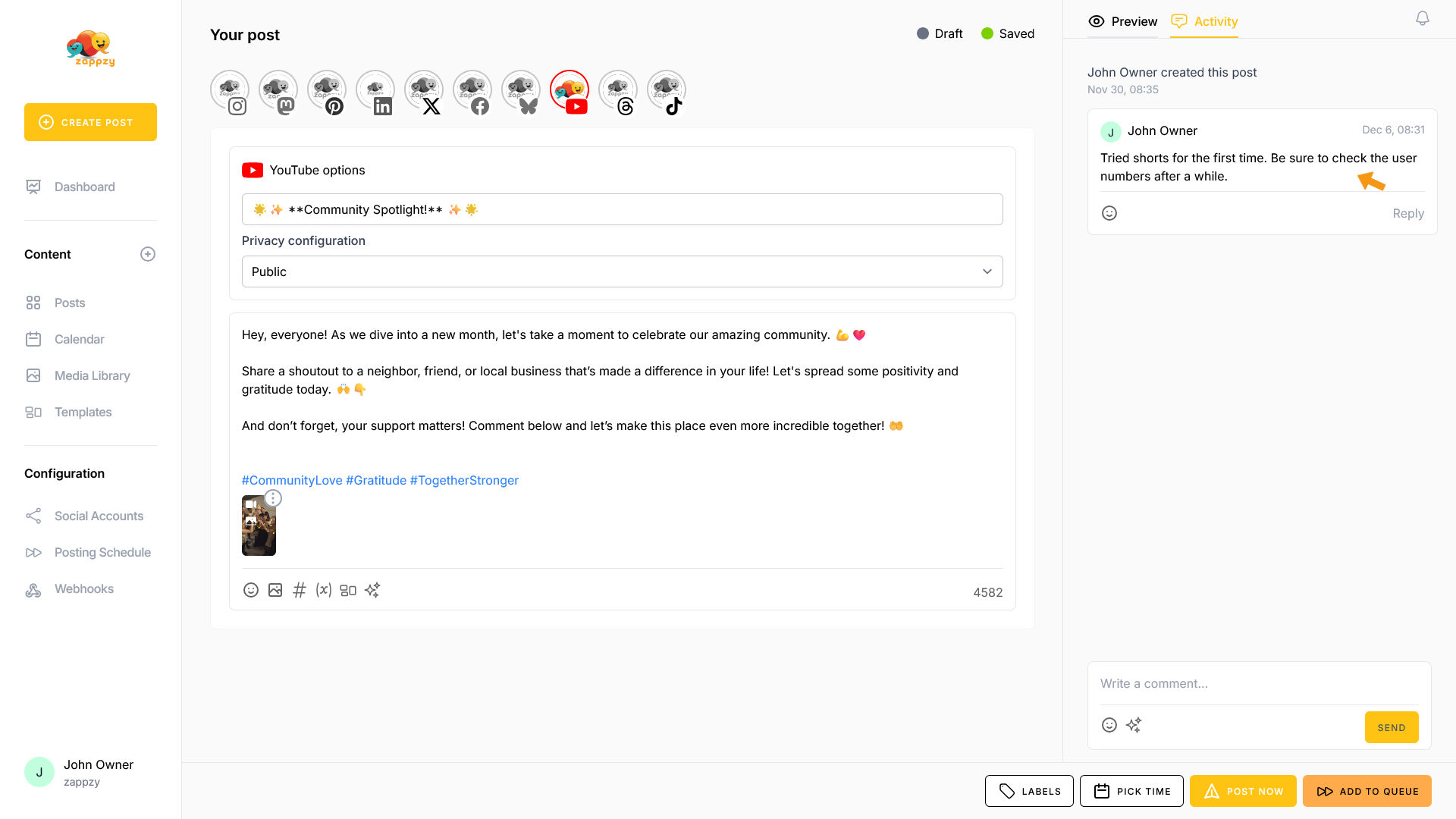
In the Activity tab, you'll see the post's history—who created it and when. In this example, the post was created by John Owner on Nov. 30 at 08:35. You can also add notes to track why specific changes were made.
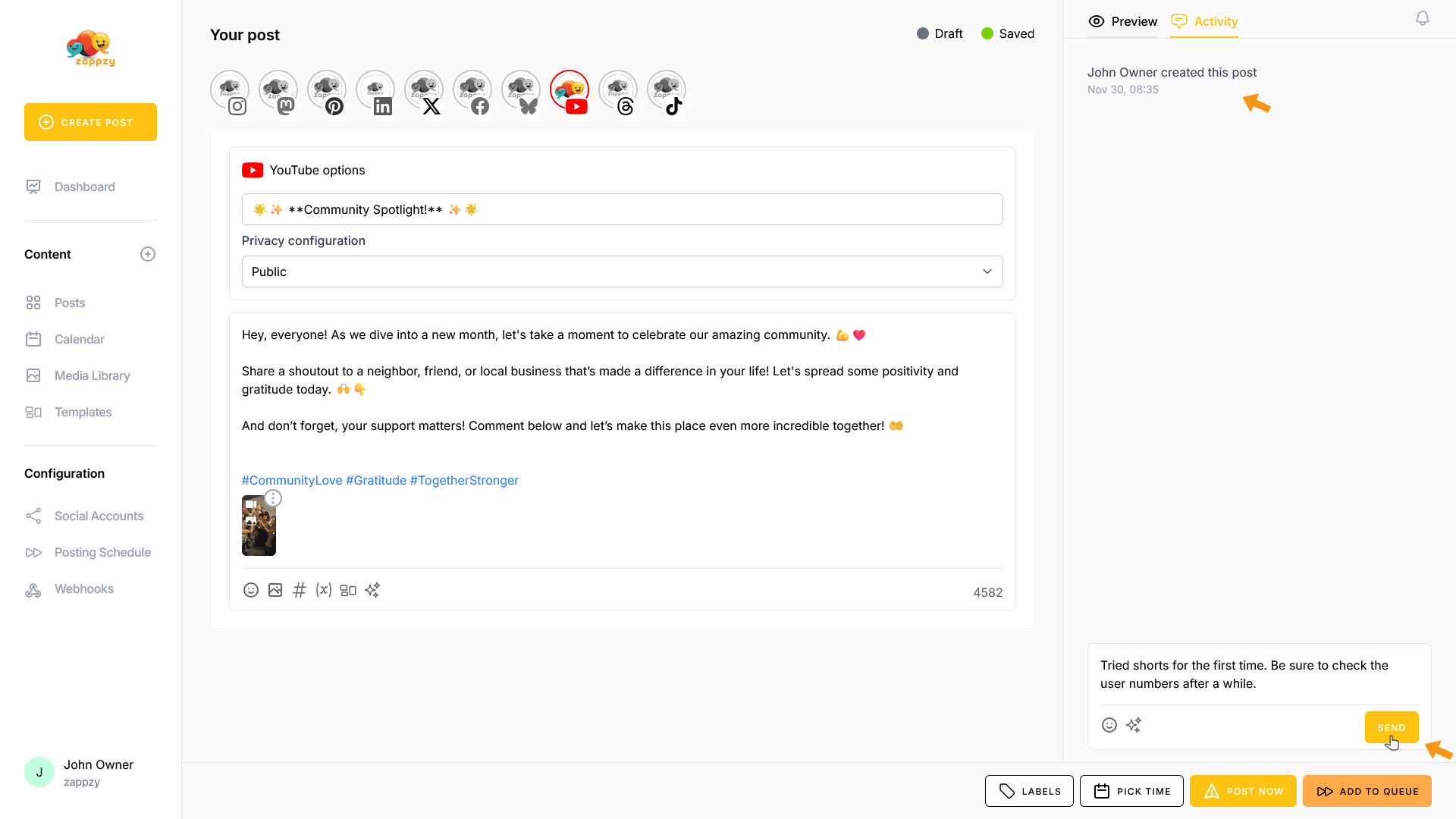
If you have the zappzy PERSONAL plan, this feature is for your eyes only—you can write notes to remind yourself of important details.
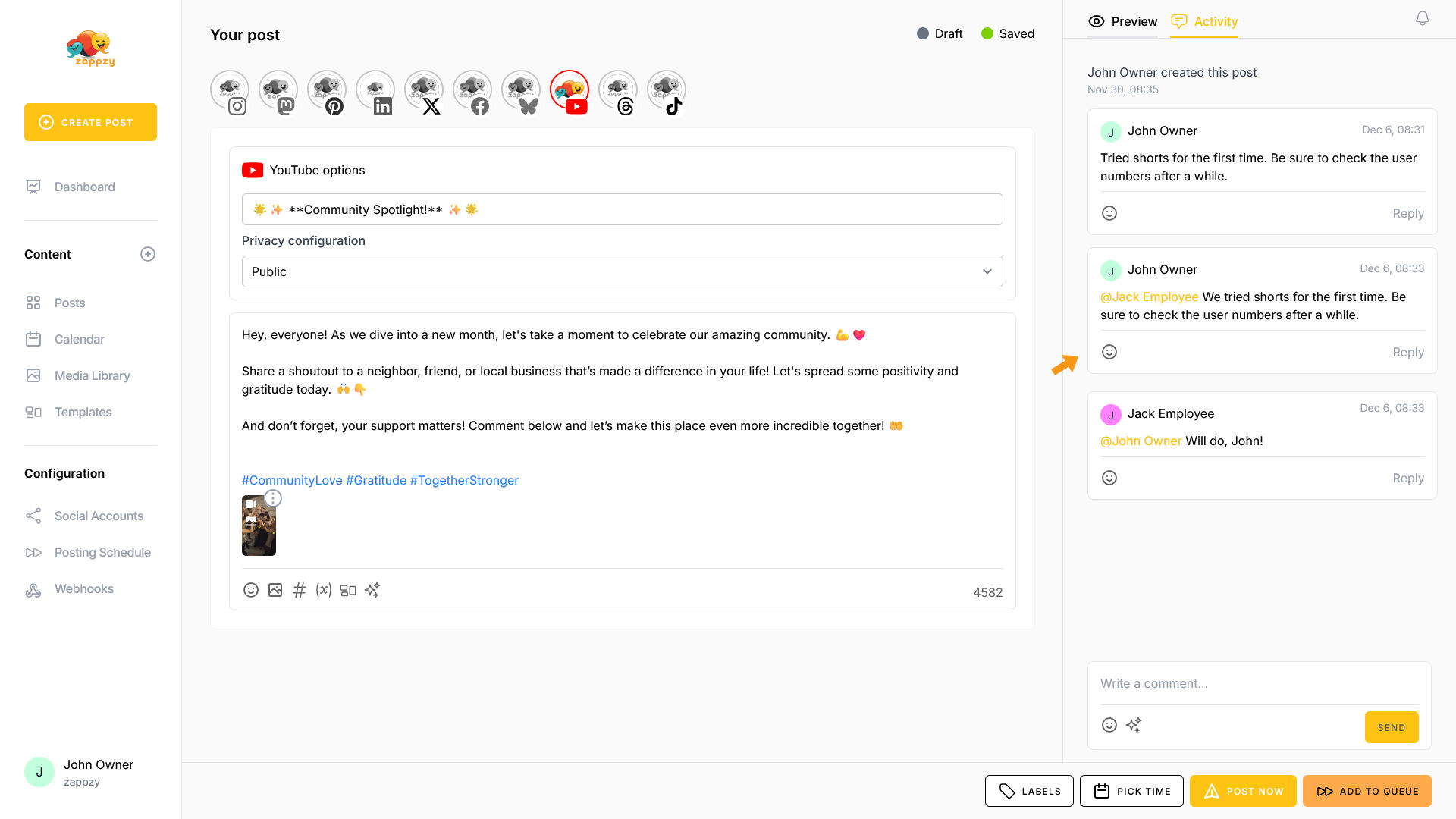
If you have the zappzy BUSINESS plan, the Activity tab is available to all team members. You can communicate with each other, leave feedback, and manage approvals—as explained in the article Approval: How to approve posts.
One last feature: at the top right, you'll see the bell icon. Here you can choose whether you want to be notified for all activity on this post or only when you're mentioned. This feature is especially useful for zappzy BUSINESS plan users.
Perfect! Now that everything is set up, you can either post immediately or schedule your post for later.
Pro tip: We recommend logging into YouTube Studio after publishing to optimize additional settings. Adding YouTube tags is especially important for boosting your video's discoverability.