zappzy Support Center > Content > Create posts > Create a post > Add thumbnails to videos

Video or step-by-step guide with screenshots. Your choice. Choose what fits you best.
Step-by-step guide
A video thumbnail is the preview image viewers see before clicking your video—a custom one grabs attention and significantly boosts click-through rates.
Video thumbnails are only available for Instagram, YouTube, Pinterest, and LinkedIn.
Adding a thumbnail works the same way across all supported platforms:
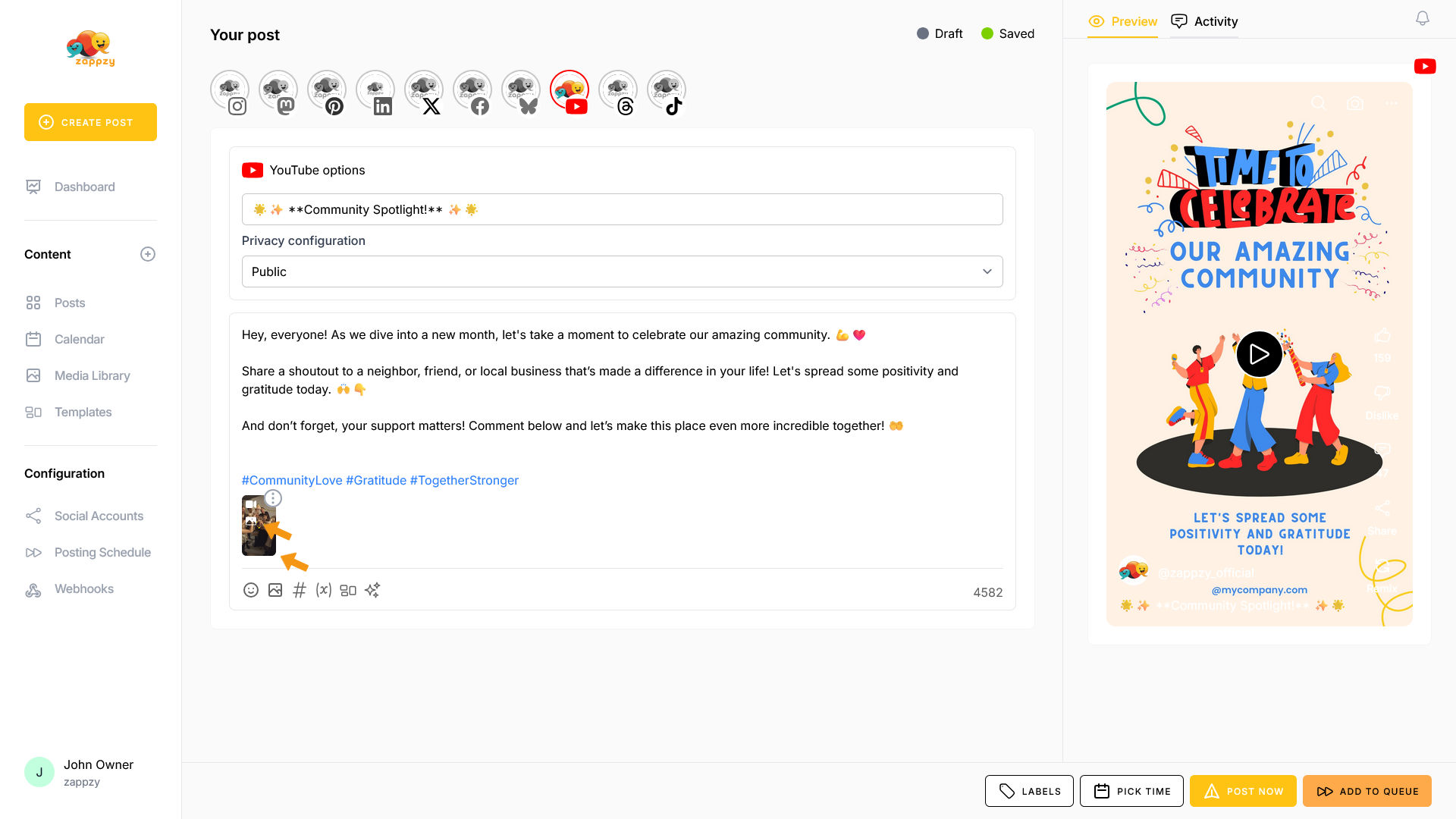
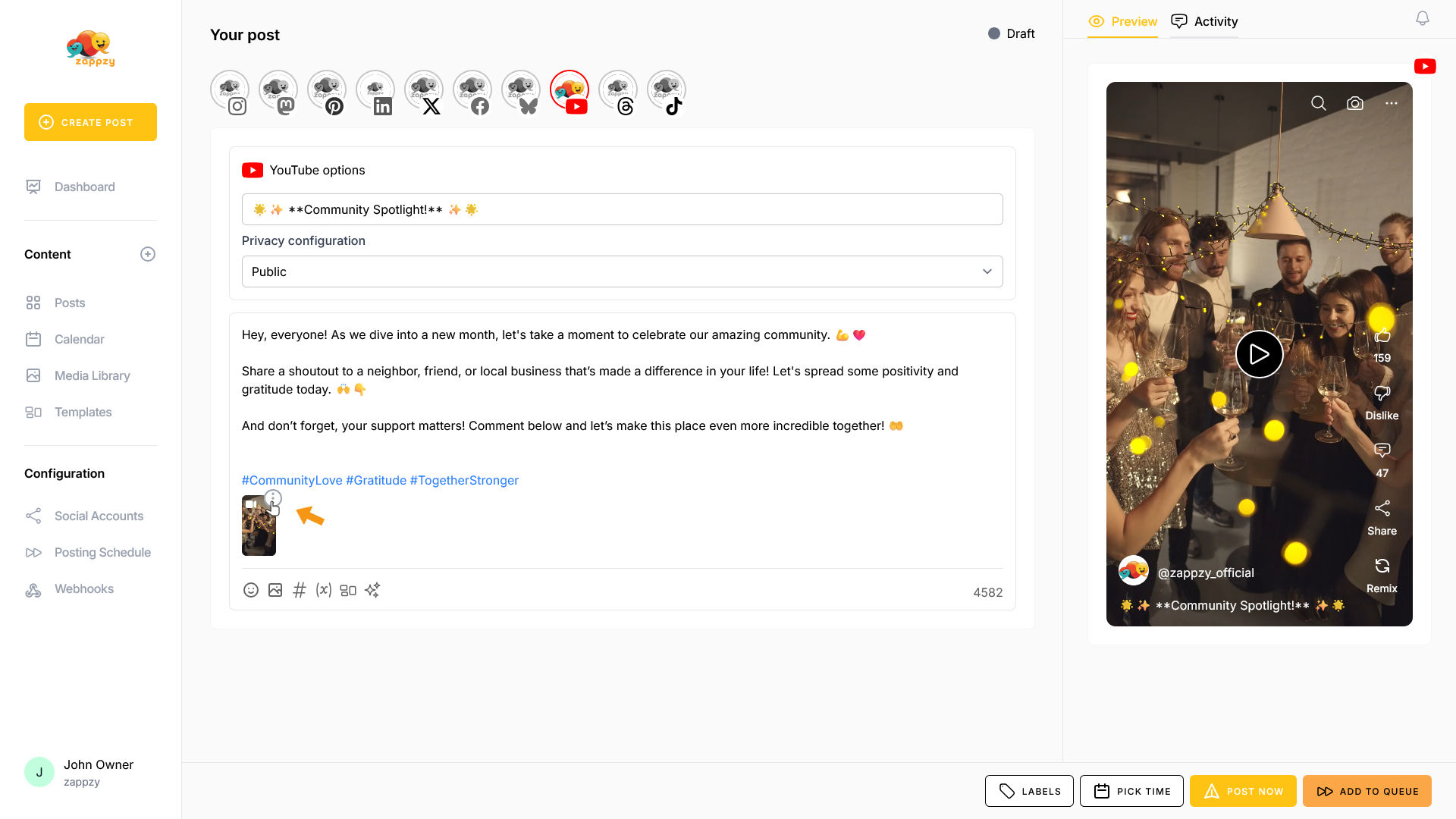
After adding a video, you'll see three vertical dots in a circle on the video. Click on it.
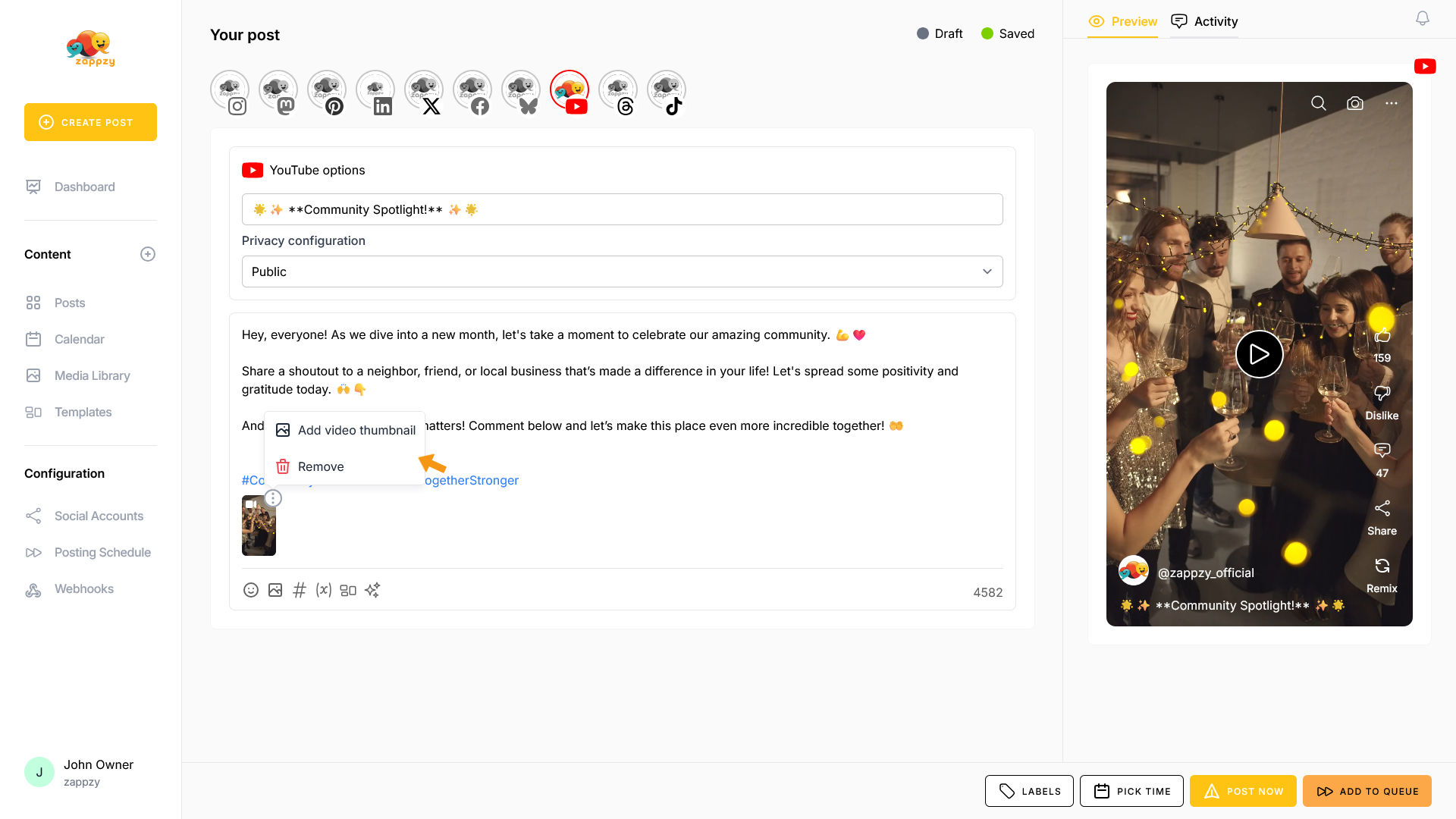
A menu opens with two options: Remove (self-explanatory) or Add video thumbnail—which zappzy includes when publishing to your selected platforms.
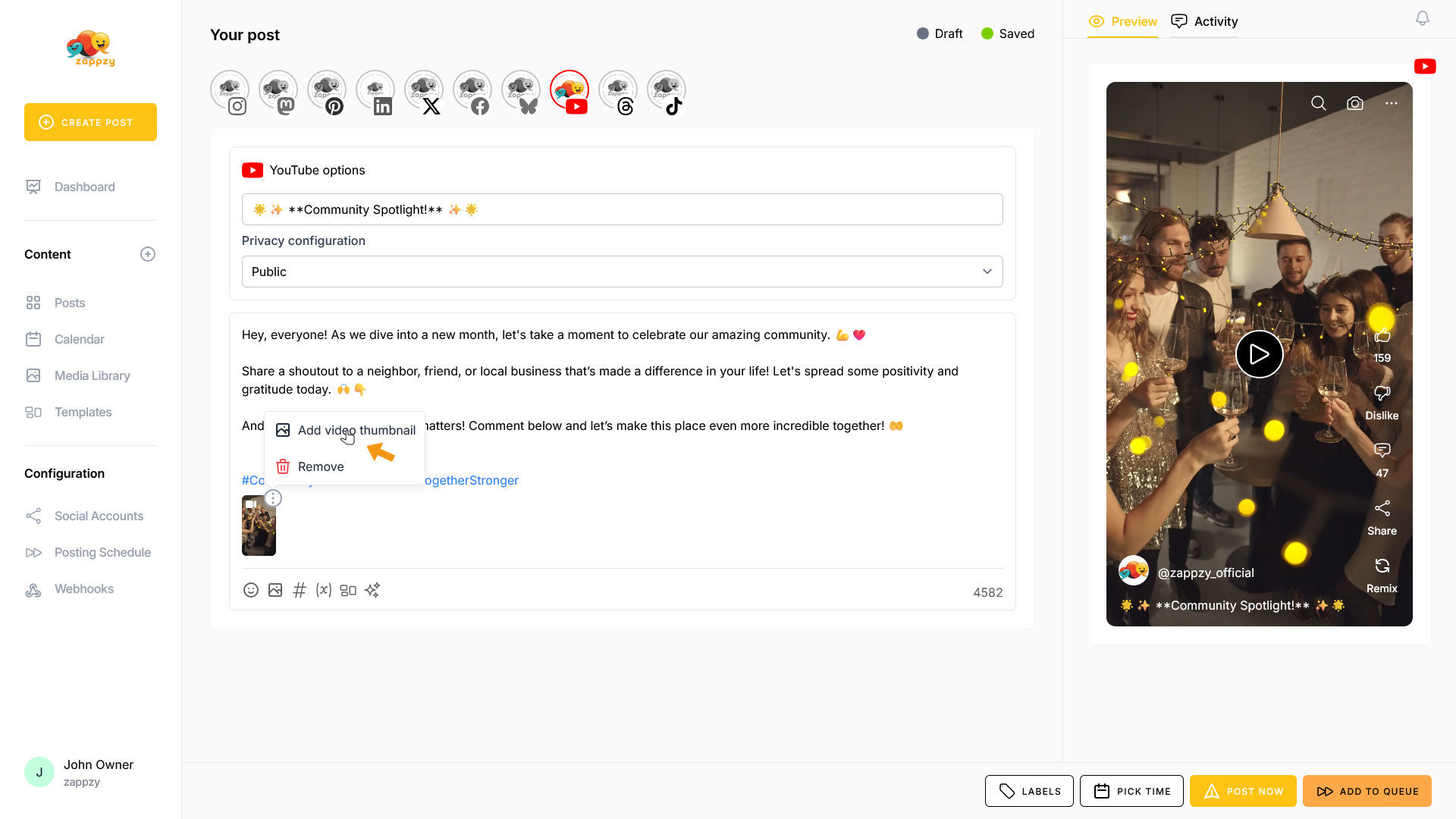
Click on Add video thumbnail.
The Add Media pop-up opens.
First, you'll see your Media Library—where you've uploaded your own thumbnails.
You also have the option to upload thumbnails using the Drag & Drop files field or create one with Adobe Express (New Design).
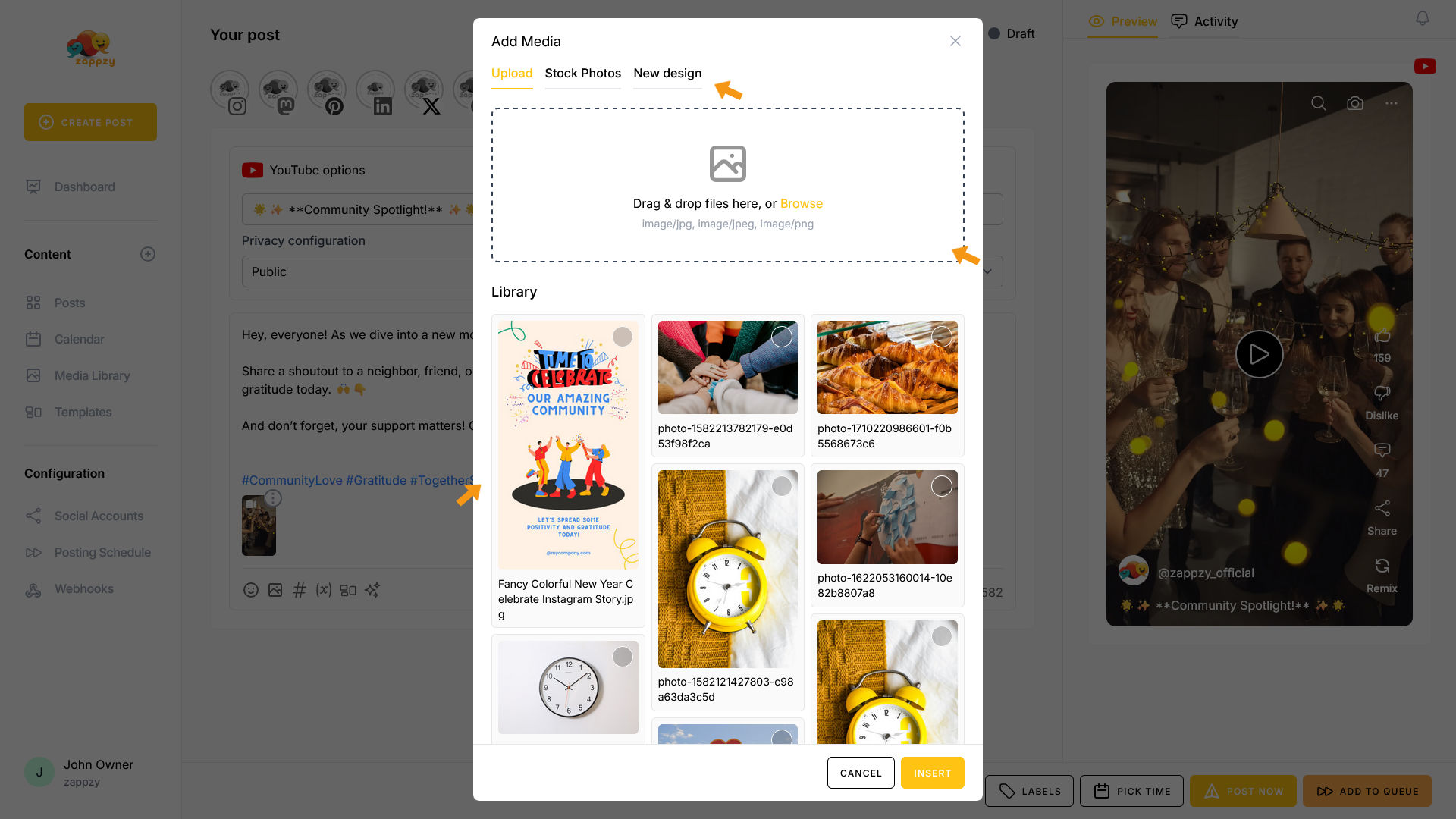
To select a thumbnail, click on it. It will be marked, and click on the INSERT button at the bottom.
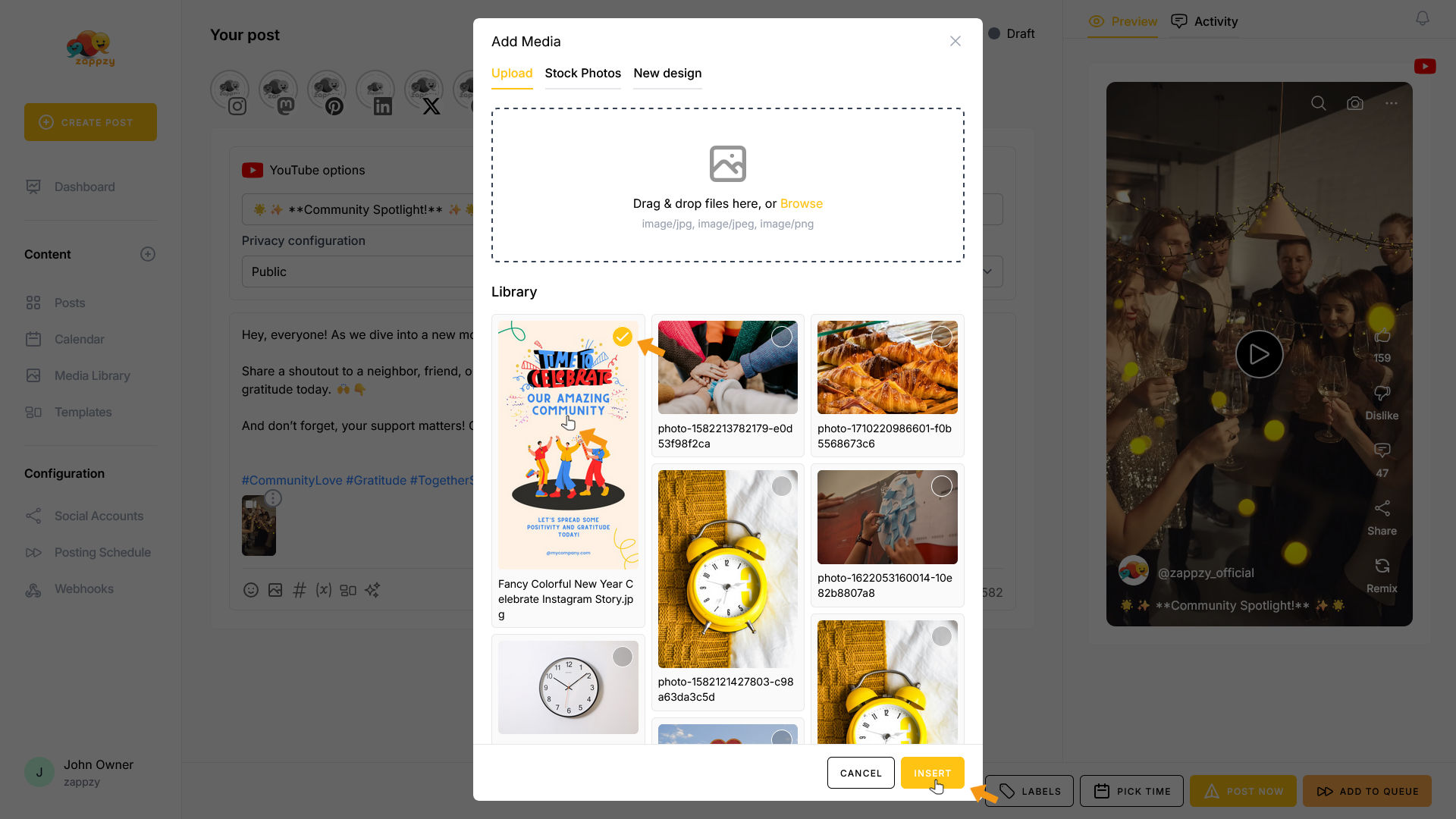
The thumbnail has been added. You'll see a small image icon appear on the video.